AI Assistant overview
The Assistant in Studio lets you get work done by typing and ask questions about scripts. The model runs on this computer. This topic describes the required package, the hardware and the first start.
What the Assistant is for
The Assistant is a local AI tool that runs inside Studio. You write what you want in a plain sentence, and the model turns the request into work or code. It is used in two places:
The Assistant is available only in Studio. It is not available in Live.
The model runs on this computer
- Studio opens the model as a separate server program. This program listens only on
127.0.0.1; other computers cannot connect to it. - At each start, the server opens on a free port with a key specific to that session.
- Studio sends requests only to this local server. The code of the Assistant contains no request to an external address. Your project is not sent anywhere.
- The model is read from the package, not downloaded from the internet. The Assistant does not need an internet connection to work.
- When Studio closes, the server closes too.
The following information is sent to the model with each request:
| Where from | Information sent to the model |
|---|---|
| Studio Assistant | Project summary (connections, the first 60 tags, screens, scripts, alarm counts, classes, cycles, user groups), the open screen or section, the selected objects, your request, the last four rounds of the chat. |
| Assistant in the code area | The first 150 tag and screen names, the name and type of the script, the open code, the selected code, your question, the last four rounds of the chat. |
Required package
- Download the package
Sign in at
www.fabyavision.com. DownloadFabyaVision_AI_<sürüm>.zipfrom the Download page. For a computer with no internet, carry the file on a USB drive. - Extract the archive
Extract the zip file to a folder.
FabyaVision_AI_<sürüm>.exeand theDatafolder next to it must stay together. - Run the setup
Run
FabyaVision_AI_<sürüm>.exe. The setup finds the installed FabyaVision and places the files in theaifolder. If it does not find it, you select the folder. - Open the panel
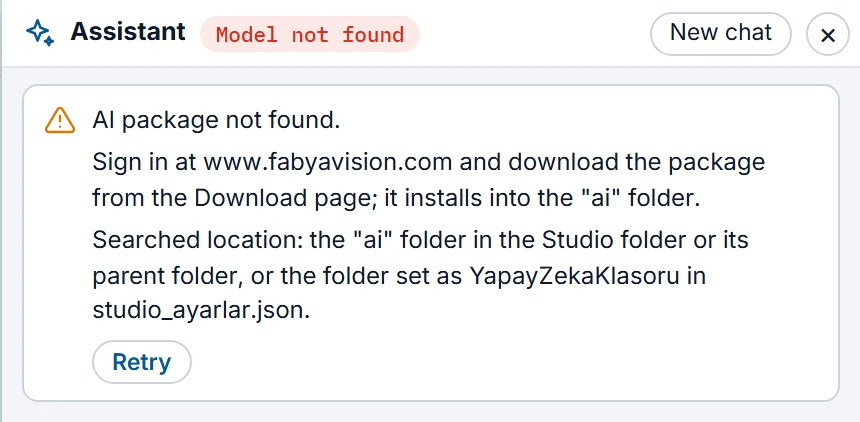
Click the Assistant button on the toolbar. If the package is not found, the message below appears in the panel. If you installed the package while Studio was open, Retry is sufficient.
 12
The message at the top of the panel when the package is not found. - State — shows Model not found when there is no package.
- Retry — searches for the package again.
The package is the ai folder that contains the model file and the server programs. Studio searches for this folder in the following order and uses the first valid one:
| Order | Location | In the default installation |
|---|---|---|
| 1 | YapayZekaKlasoru in studio_ayarlar.json | The folder you enter |
| 2 | The ai folder next to the Studio program | C:\Program Files (x86)\Fabyatek\FabyaVision\Studio\ai |
| 3 | The ai folder one level above the Studio folder. The package is installed here. | C:\Program Files (x86)\Fabyatek\FabyaVision\ai |
For the folder to be considered valid, it must contain a model subfolder and at least one server program. Do not change the folder layout of the package. The model file has the .gguf extension. If the model folder contains more than one model, Studio takes the first file by name.
To keep the package on another disk, close Studio and write the folder in the studio_ayarlar.json file. Backslashes are written double:
"YapayZekaKlasoru": "D:\\FabyaVision\\ai"This setting has no equivalent on screen. Studio reads the file only at startup and also writes it itself. Therefore make the change while Studio is closed.
If there is a <dosya adı>.gguf.sha256 file next to the model file, Studio checks the hash of the file at the first opening. The same file is verified once; if the file changes, it is checked again.
Hardware
Studio performs the checks below when it opens the panel. It selects the hardware to use by itself.
| Condition | Required | If not met |
|---|---|---|
| Operating system | 64-bit Windows | Yerel model 64 bit Windows gerektirir. |
| Memory (RAM) | Total memory must be at least 3 GB more than the size of the model file | The message Bellek yetersiz: … appears and the model does not open. |
| Graphics card (optional) | A card that is visible through Vulkan and has at least 1 GB more free memory than the model file | The model runs on the CPU. |
| Processor | If the graphics card is not suitable, the package must include a CPU server | The message İşlemci sunucusu yok: … appears. |
The response speed depends on the model size, the hardware and the length of the information sent to the model. The hardware in use appears in the status text.
First start
The model is not loaded when Studio opens. It is loaded the first time one of the Assistant panels is opened. The two panels use the same model.
- While loading, the status text shows the stages: looking for the folder, checking the model, verifying SHA, selecting hardware, starting the server.
- Any request you type in the meantime waits. It is sent automatically when the model is ready.
- When the model is ready, Studio has it process the instructions and the project summary once. The first answer may therefore take longer than later ones.
- If the model does not open within three minutes, Studio stops trying and shows an error.
- Closing the panel does not close the model. When you reopen the panel, the model is ready.
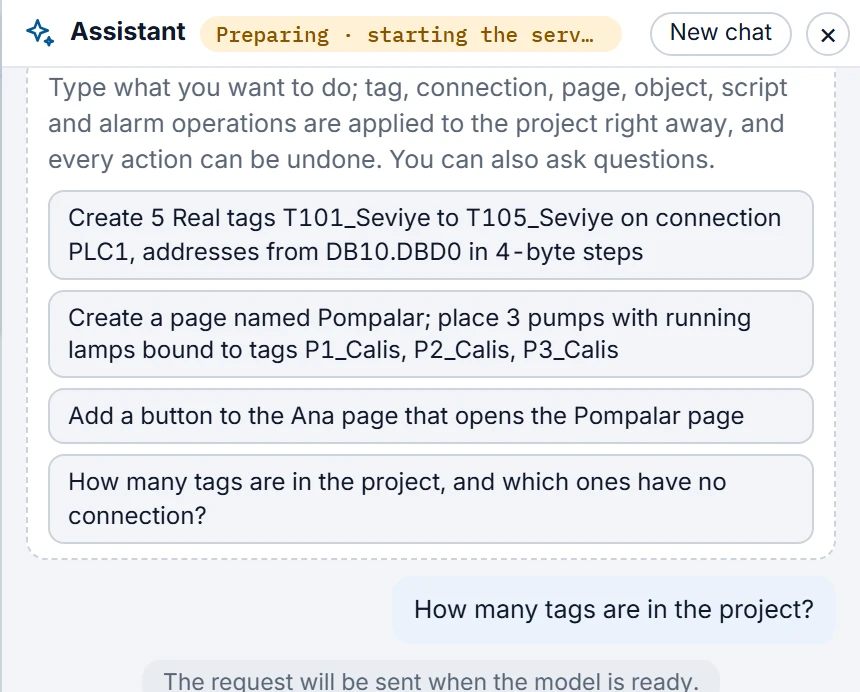 12
- State — shows which stage it is in.
- Next request — sent automatically when the model is ready.
State texts
| In the panel header | Meaning | What to do |
|---|---|---|
| Ready · GPU, Ready · CPU | The model is running. The text shows the hardware in use. | Enter your request. |
| Preparing · … | The model is loading. | Wait. |
| Answering… | The model is writing an answer. | To interrupt, click the Stop button. |
| Model not found | No valid package folder. | Check the package, then click Retry. |
| Model could not be started | The package was found but the model did not open. The reason is shown in the panel. | Read the message, fix the problem and click Retry. |
Common startup messages:
model klasöründe .gguf dosyası yok: …- The model file is missing.
Model dosyası bozuk: …- The file may be incomplete. Reinstall the package.
Model dosyasının SHA-256 özeti yan dosyayla uyuşmuyor …- The file is corrupt or has been changed.
Sunucu 180 sn içinde hazır olmadı. …- The model did not open in time. Check memory usage, close other heavy programs and try again.
At each start, the detailed log of the server is written to the file logs\StudioAI_<tarih>_<saat>.log in the Studio folder. Files older than 30 days are deleted. Details: Log files.
Answer language
The model is asked to write explanations in the interface language: Turkish if the interface is Turkish, English if it is any other language. When you change the interface language, Studio tells the model the new rule. For the interface language, see Options: settings, theme and language.