Assistant in the code area
While writing a script, ask questions in the panel to the right of the code area. The code in the answer is checked, tried in a dry-run environment, and goes into the editor only if you want it to.
This panel does not change the project. The model does not write to the editor by itself; code goes in only when you click the button. To have work done in the project, use the Studio Assistant. Prerequisite: an installed AI package.
Opening the panel and asking a question
- Open the script
Select a script in the Scripts section. The code window of the Run VBS code, Run C code and Run Python code functions in events uses the same panel.
- Open the panel
Click the Assistant button in the header of the code area. The panel opens to the right of the code. A read-only code area has no such button.
- Type your question
Enter sends, Shift+Enter starts a new line. To ask about a specific part, select the code first. The model sees the open code and the selection.
- Read the result
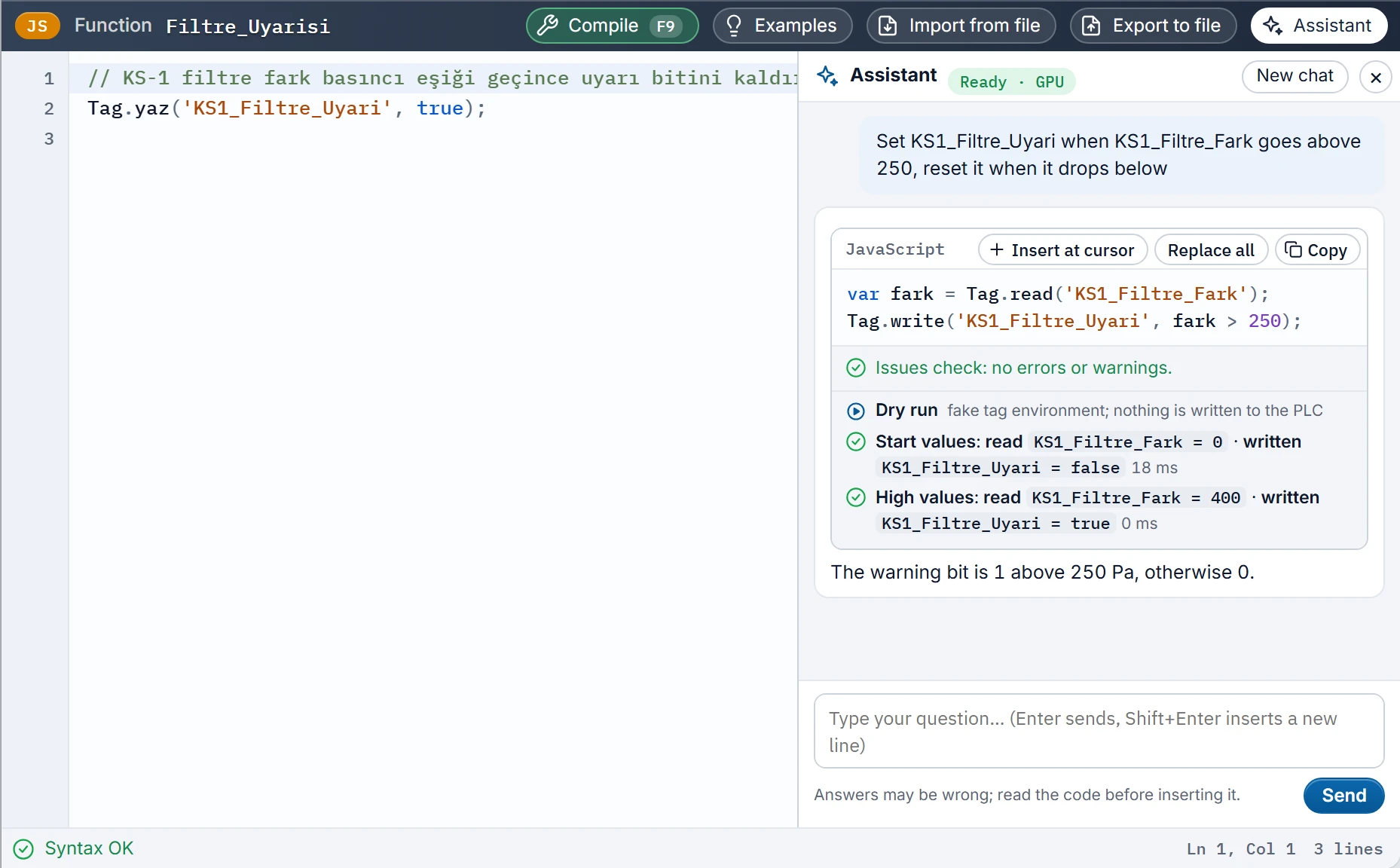
When the answer arrives, the Problems and Dry run results appear below the code box.
- Insert the code
If it is suitable, transfer it to the editor with one of the buttons in the code box. Then compile it with Compile (F9) and save the project.
 1234
- Assistant — opens and closes the panel.
- Code buttons — Insert at cursor, Replace all, Copy.
- Problems — a check made without running the code.
- Dry run — two value scenarios; nothing is written to the PLC.
Four languages
The model answers in the language of the open script. For these languages, the commands of the environment are given to the model in advance:
| Language | Tag reading and writing | Details |
|---|---|---|
| JavaScript | Tag.read, Tag.write | JavaScript |
| VBS | SmartTags("Ad"), HMIRuntime.Tags("Ad") | VBScript |
| Python | scada.read, scada.write | Python |
| C | GetTagFloat, SetTagFloat and the others by type | C |
The chat carries over from one script to the next. If the script language changes, a new chat starts and the note Script language changed: new chat. appears. The New chat button clears the history manually. If the panel is left open, it is also open in the next code area.
Code box buttons
- Insert at cursor
- Inserts the code at the cursor position. If code is selected, it replaces that code.
- Replace all
- Replaces all the code in the editor with this code. It can be undone in the code area with Ctrl+Z.
- Copy
- Copies the code to the clipboard.
If the language of the code block differs from the language of the script, the warning The code block language differs from the script language appears in the box. Before adding this code, ask the model to write it in the correct language.
Problems
This check does not run the code. It looks at the syntax and the rules of the language: tag and screen names in the project, script permissions, unsupported usages. If there are no problems, Issues check: no errors or warnings. appears. Errors are red, warnings are yellow. The box shows the first six problems and the number of the remaining ones.
Dry run
Studio runs each code block in a fake tag environment with two scenarios. The code does not write to the PLC. The project tags and the code in the editor do not change.
| Scenario | Tag values |
|---|---|
| Start values | The Start value of the tag. If empty: numbers 0, Bool false, text empty. |
| High values | For numbers, the Upper limit value of the tag, or 100 if there is none. Bool true, text metin. |
One line appears for each scenario:
- read, written
- The tags the code reads and writes, with their values.
- notification, screen opened, trace line
- The messages the code displays, the screens it opens and what it writes to the log.
- tag not in the project
- The code uses a tag that does not exist in the project.
- no reads or writes
- The code ran but did not touch any tag.
- not run … (needs parameters, or is a class)
- Amber row. Procedures that need parameters and classes cannot be called automatically; their names are shown. This code has not been tested.
- no tag command ran
- Amber row. The code contains a tag, screen or notification command, but none of them ran in this scenario: for example, a branch whose condition was not met or a function that was not called.
- Runtime error
- The code raised an error while running. The line number and message are shown.
- Time limit exceeded
- The code did not finish; it may be an infinite loop. The limit is 2 s in VBS, Python and C, and 4.5 s in JavaScript.
- (not supported in the dry-run environment)
- The code used something that does not exist in the dry-run environment. This does not mean that the code is wrong.
What the dry run cannot do
Automatic check and correction
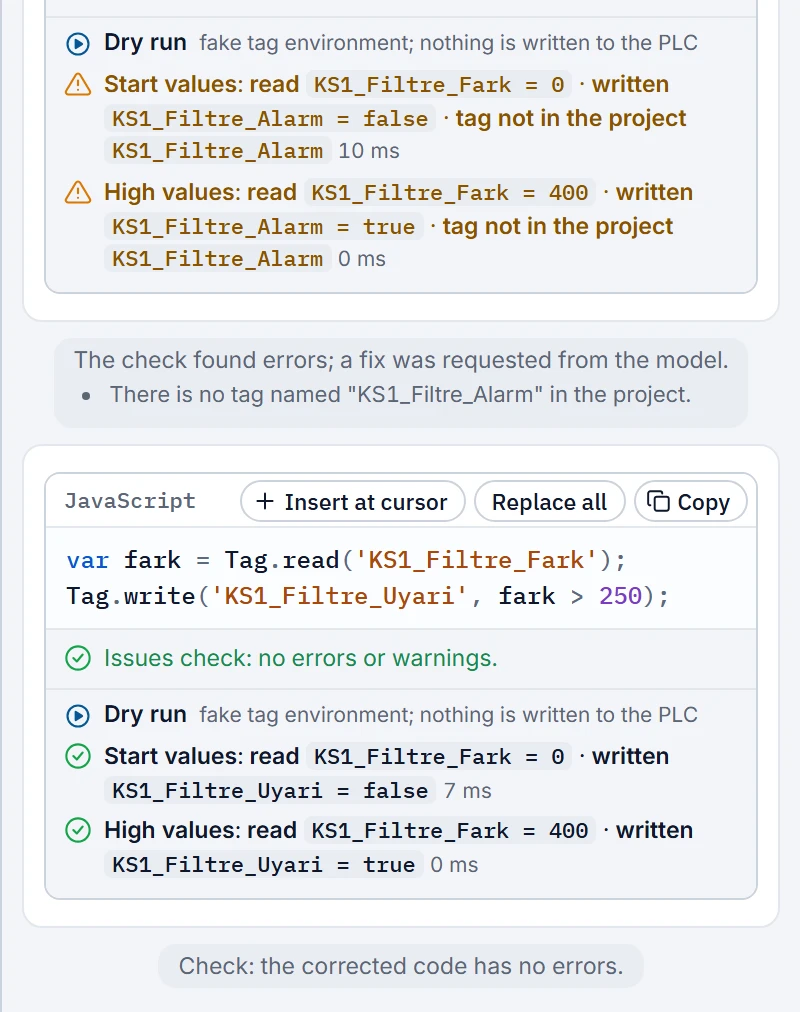
If the answer contains an error, Studio asks the model once for corrected code. The reasons for this are: a Problems error, a runtime error, exceeding the time limit and a tag that is not in the project. No correction is requested for cases that hit a limit of the dry-run environment.
| Note in the chat | Meaning |
|---|---|
| The check found errors; a fix was requested from the model. | The problems found are listed below the note. |
| Check: the corrected code has no errors. | The second answer passed the check. |
| Check: errors remain; a fix is requested only once. | Studio does not request it again. Fix the problem yourself or change the question. |
The correction arrives as a new answer. You still add it to the editor yourself.