Redundant server pair
Running the same project on two Live computers as master and standby: only the master communicates with the PLCs; if the master does not respond, the standby takes over. Setup, switchover rules, PLC arbiter, synchronization and limitations.
What it is used for
In a redundant server pair, the same project runs on two computers. One is the master: it communicates with the PLCs, detects alarms, writes data log and report records, and runs tasks and scripts. The other is the standby: it receives the values from the master, forwards the operator's commands to the master and copies the master's records to its own data folder. If the master does not respond, the standby becomes master.
This feature is the redundancy of the Live computers. PLC redundancy (communicating with whichever of two CPUs is master) is a separate feature: Automatic switchover to the backup PLC. The two can be used together.
Installation
- Select the operating mode
In Studio, set Device configuration › Operating mode to Redundant server pair (redundancy). In the Redundant server pair card, enter the Windows name and the address of the two computers, the default master, the port and the times. Fields: Device configuration.
- Define the arbiter addresses
In at least two PLC connections, enter an Arbiter (redundant server) in the Arbiter address (Int) card of the connection's Inspector (see PLC arbiter below). Do not use this address for anything else in the PLC program.
- Check the project
Check with F7. A missing server name, an identical address, a port that conflicts with Remote monitoring and a project without an arbiter appear in the Problems list.
- Put the same file on both computers
Upload the project to one computer and copy the resulting
.fvsfile to the Live project folder of the other computer. Each upload writes a new revision to the file; two separate uploads produce two different files, and Live gives the warning The project on the partner server differs from the one on this computer; both computers must run the same project file. When the project changes, update both. - Open the port in the firewall
On both computers, allow inbound connections to the redundancy port (default TCP
8091). Live does not add this rule automatically. In an administrator command prompt, with the address of the other server:netsh advfirewall firewall add rule name="FabyaVision Yedeklilik" dir=in action=allow protocol=TCP localport=8091 remoteip=192.168.0.12If you use remote monitoring, its port also needs a permission on both computers (Remote monitoring).
- Enter the passwords on both computers
The OPC UA, OPC DA and MQTT connection passwords and the PFX passwords are kept in each computer's own store; they are not synchronized. Enter them from the system menu in both Live instances (Connection security).
- Open Live on both computers and check
The Redundant server section of the system menu must show the role of this station, the Connected (standby) or Connected (master) state of the partner server and the counter running state of the arbiters. Then test the switchover with Hand over master role… and by closing the master Live.
Roles and division of tasks
| Operation | Master | Backup |
|---|---|---|
| PLC communication | All enabled connections | Only connections with an arbiter address are opened, and only the arbiter counter is read |
| Tag values, alarm list, connection states | Generates them itself | Come from the master's snapshot (every half second) |
| Alarm detection, data logging, report logging, scheduled tasks, scripts | Run | Do not run |
| Tag writes by the operator (PLC and internal tags), alarm acknowledgment, shelving, comment | Carries them out itself | Forwarded to the master; the master performs it |
| Event, alarm, archive and report logs | Author | Synchronized from the master every 3 s |
| Live store (e.g. recipe records) | Author | Written locally and forwarded to the master; changes on the master are synchronized |
| Session, language, open windows | Separate on each station | |
On the standby, event functions that run scripts do not work; when the operator presses such a button, the notification Standby server: scripts do not run — Scripts run only on the master server. appears. Manual report records (Report records are taken by the master server.) and recipe transfer by script are not possible on the standby either. — Master or — Standby is added to the title of the Live window.
How the role is determined
The two Live instances ask each other for their state once per second (each request waits at most 1.5 s). Rules:
| State | Result |
|---|---|
| Live starts, partner server is master | This Live instance becomes standby. |
| Both start at the same time | The Default master becomes master, the other becomes standby. |
| Live starts, partner server does not respond | When Timeout (s) expires (and at least two queries remain unanswered), the arbiters are checked: if the counter is increasing on an arbiter, this Live instance becomes standby; if not, it becomes master. |
| The master stops responding while the standby is running | Same rule: if the counter is not increasing, the standby becomes master (takeover); if it is increasing, it does not take over and gives a warning. |
| Both Live instances are master | The one that became master later steps back and becomes standby (if equal, the one that is not the default master). |
| Both Live instances are standby | The default master becomes master. |
| The failed master comes back | Since the partner server is the master, the returning Live joins as standby. The master role is not taken back automatically. |
At startup, Live does not show the screens until the role is determined; if the partner server does not respond, this wait lasts as long as the timeout.
When the role changes
- A short notification (This station is becoming master / This station is becoming standby) appears on both Live instances and the page is reloaded. Open windows are closed and the operator logs on again.
- The new master establishes the PLC connections; until they are established, the PLC tags have bad quality. The values of internal and simulator tags and the alarm states continue from the standby's last snapshot; no new incoming entry is written for the alarms taken over.
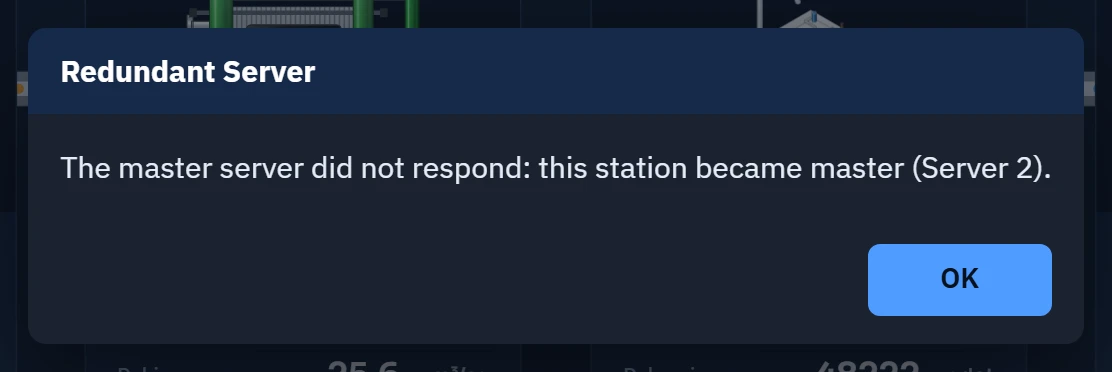
- When the screen opens, a window stating the reason appears and the same text is written to the event log. When Live first starts, a window reporting the role also appears (This station started as master (Server 1).).
PLC arbiter
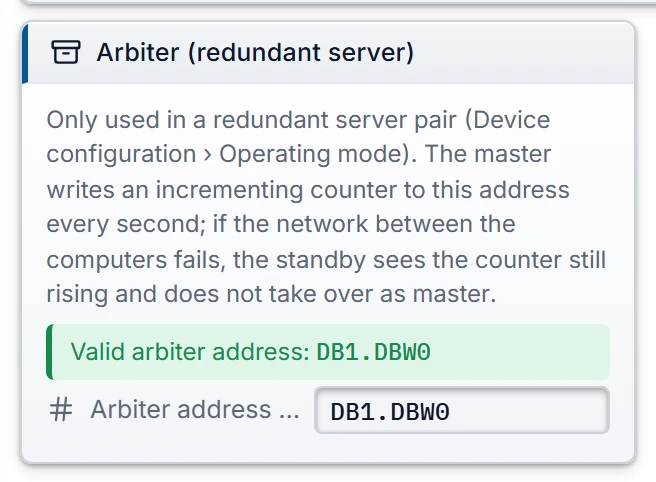
The arbiter prevents both Live instances from becoming master at the same time when the network between the two computers is lost. Every second, the master writes an incrementing counter (1 – 32767) to each connection that has an arbiter address defined; the standby reads these addresses. When the standby cannot reach the partner server and the counter has changed within the last timeout period, it concludes that the master is running and does not take over. In this case the message The partner server (…) cannot be reached, but the PLC arbiter shows that the master is running; the master role was not taken over. Check the network connection between the computers. appears in the system menu.
 12
- Arbiter address (Int) — every second the master writes an incrementing counter to this address; empty = not an arbiter.
- State — whether the address is valid and whether it conflicts with a tag.
- The arbiter is defined per connection: if the project has several PLCs, each of them can be a separate arbiter. Define it in at least two PLCs; while one is switched off, the other decides.
- The address is a writable
Intaddress that follows the driver's rule (e.g.DB1.DBW0orMW100for S7,40100for Modbus). Input / output and read-only areas are not accepted: S7I/Q, Modbus3xxxx, MitsubishiSD/SW/TN/CN/Z, OmronCIO/A/T/C. A simulator connection cannot be an arbiter. - If the address is the same as the address of a tag on the same connection, Studio warns: the counter overwrites that tag's value. If another system writes to the same address, Live gives the warning Someone else is also writing to the PLC arbiter (…).
- If no connection has an arbiter and the network between the two computers is lost, both Live instances become master and both write to the PLCs. Studio warns about this in Problems.
Monitoring in Live
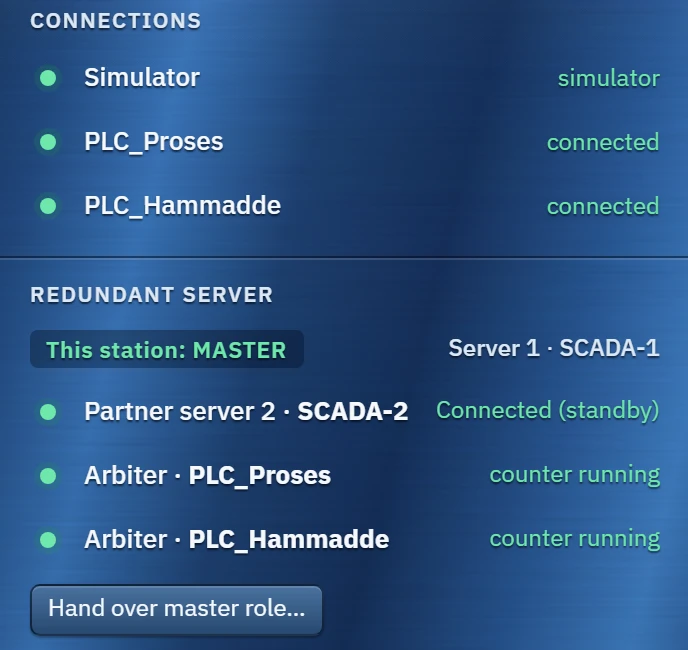
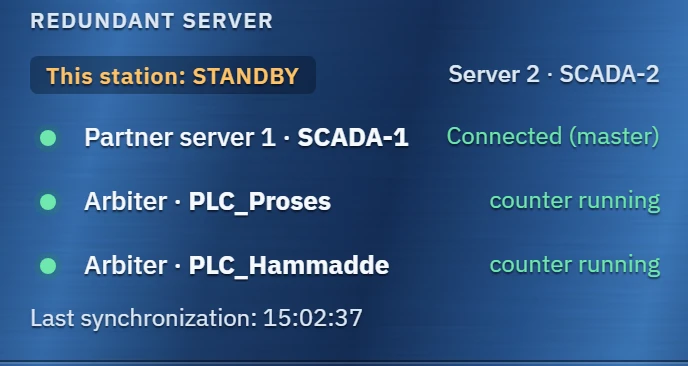
In the system menu, the Redundant server section is located below Redundant server.
| Row | Meaning |
|---|---|
| This station: MASTER / STANDBY | Role, server number and computer name. |
| Partner server | Waiting, No connection, Connected (master) or Connected (standby). |
| Arbiter · <connection> | counter running, counter stopped or unreachable. If there is no arbiter, No arbiter PLC is defined. |
| Last synchronization | On the standby: the time when the logs were last fetched from the master. |
| No data from the master server: values are not up to date. | On the standby: the master's snapshot is not arriving. |
Common warnings: The partner server rejected the connection (redundancy key does not match) (different projects on the two computers), The partner server is also running as Server 1 (wrong computer names), The redundancy port (8091) could not be opened (port used by another program), This computer (…) is not defined as a redundant server …; redundancy is off, running as a single server. (the Windows name is not one of the two server names).
Handing over the master role manually
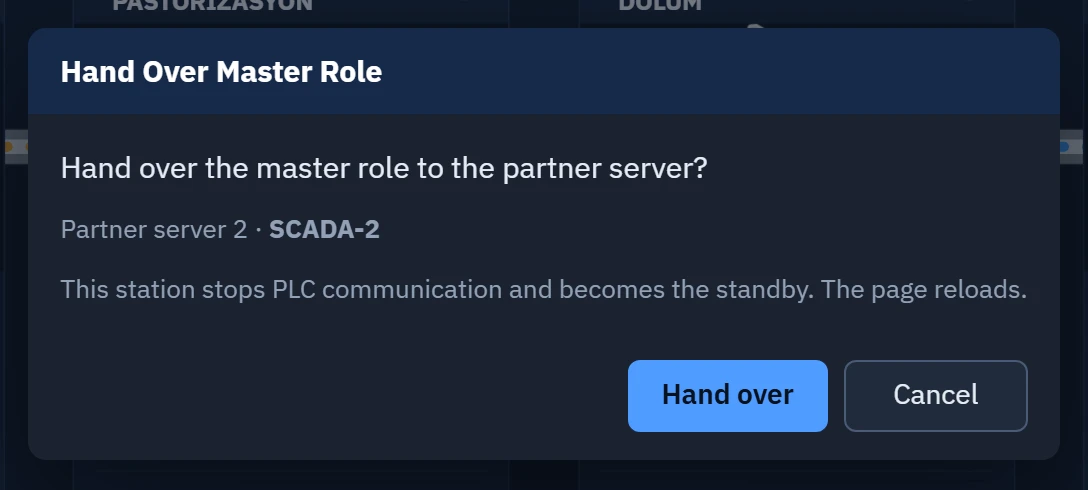
For maintenance, you can hand the master role over to the other server. On the master station, click system menu › Hand over master role…; if no user is logged on, a log-on is requested. If Live settings is on in Require authorization to exit, handing over requires the same authorization as closing the program. If the partner server cannot be reached, the button is inactive; if the partner server is not standby, no handover takes place and the reason is reported. After confirmation, this station stops PLC communication immediately, the partner server becomes master and the pages on both stations are reloaded. If the partner server cannot take over, this station remains master and the reason is reported.
Browser and TV viewers
If remote monitoring is on, viewers can connect to either of the two servers. While Browser / TV failover is on, if the connected server does not respond for 10 s, the browser switches to the address of the other server (same port and path). Sessions are separate on each server: the viewer logs on again there. The TV window on the second monitor of the Live PC does not change servers. If a Remote control user is connected to the standby server, their action is forwarded to the master.