Remote control
Control of the plant from the browser, as in Live, by browser users who have been given an authorization group: enabling it, giving a user an authorization group, the operations done in the browser and those that remain on the Live computer only, viewing connected users in Live and logging, security limits.
What it is used for
Browser monitoring is read-only by default. If Remote control is turned on in Studio and a browser user is given an authorization group of the project, that user controls the plant from the browser as in Live: writes values to tags, acknowledges alarms, saves recipes and loads them to the PLC, and creates report records. The action is applied not in the browser but on the Live computer, and it is written to the event log with the user's name and address.
Users without an authorization group and TVs still only monitor. Browser monitoring itself (turning it on, port, access networks, firewall) is described in the Remote monitoring topic; remote control is turned on on top of it. No separate license item is needed: the browser monitoring license (FV-WEB) is sufficient.
Enabling
- Turn on monitoring from a browser
Remote monitoring › General › Browser monitoring: On. Remote control only works while monitoring is on.
- Turn on remote control
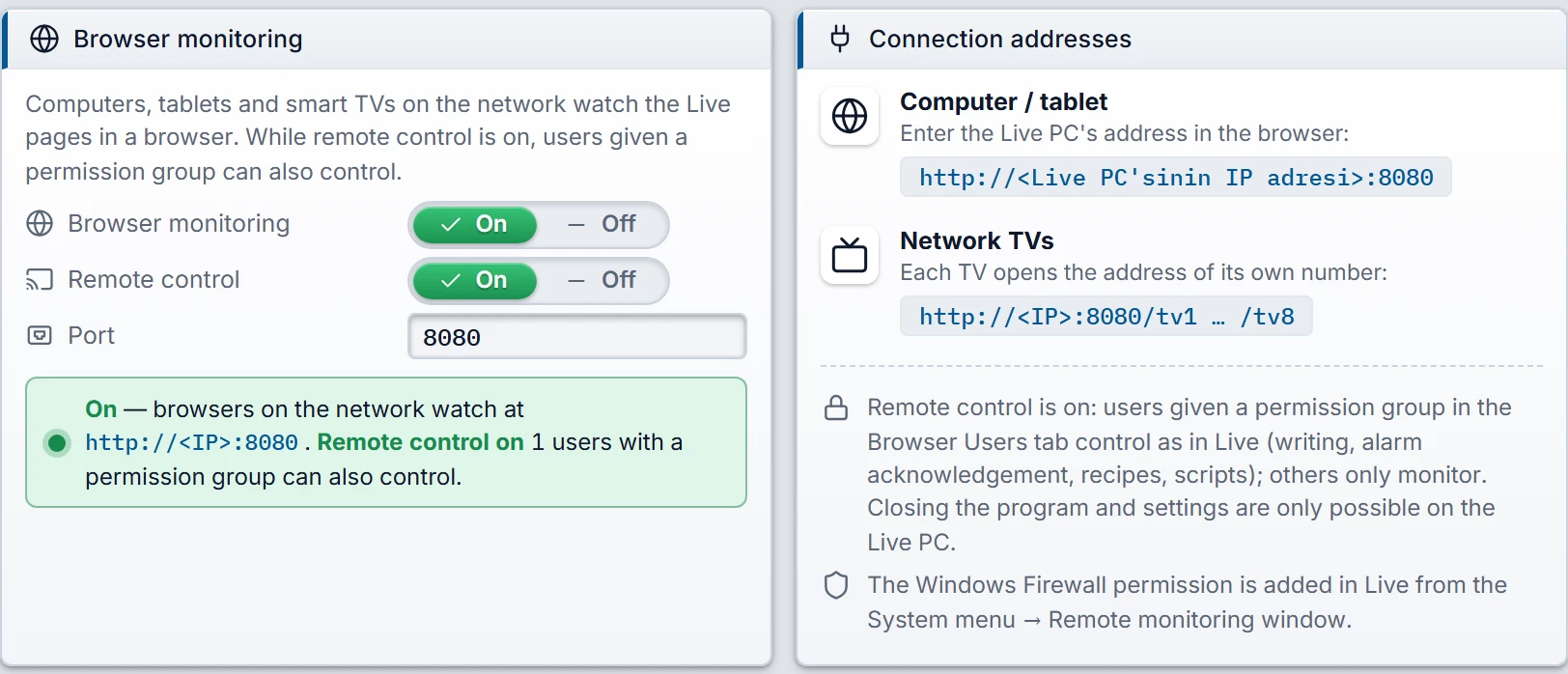
In the same group, set Remote control: On (default Off). The status line below the group states how many users can control, and the note in the Connection addresses card states what can be done from the browser. The Live settings › General › Browser monitoring card only shows the status.
 1234
Remote monitoring › General: browser monitoring and remote control turned on. - Monitoring from a browser — starts the server (this must be on first).
- Remote control — users who have been given an authorization group can also control.
- Status — how many users can control.
- Control note — what can be done and what is available only on the Live PC.
- Assign an authorization group to the user
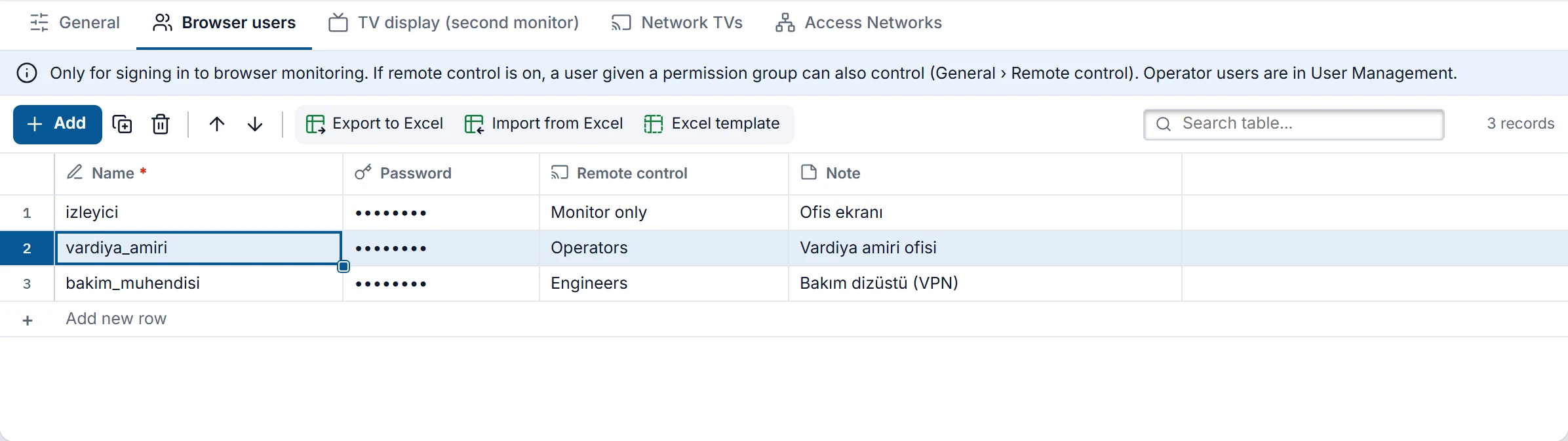
On the Browser users tab, select Monitor only (default) or an authorization group in the Remote control column. The list contains the groups in User administration (Users and authorizations). In the browser, the user works with the authorizations of that group.
 12
Browser users: izleyici only monitors; vardiya_amiri controls with the authorizations of the Operatorler group, bakim_muhendisi with those of the Muhendisler group. - Name and Password — logon from the browser.
- Remote control — Monitor only or an authorization group.
- Check the project and upload it to Live
Check with F7, save and load into Live. When Live reopens the project, the connected browsers reload the page automatically and continue with the new authorization.
Check project reports the following cases:
| Message | Level | What to do |
|---|---|---|
| Remote control is on but no browser user has a permission group: everyone can only monitor. | Warning | Assign a group to at least one user or switch off remote control. |
| Remote control is on and allowed addresses are "From anywhere": … | Error | Set Access (VPN) › Allowed addresses to Local network and VPN (private addresses). |
| A permission group is set but remote control is off (General tab): this user can only monitor for now. | Info | If you want control, switch it on in General. |
| The selected permission group does not exist in the project (deleted): this user can only monitor. | Warning | Select an existing group. |
Control in the browser
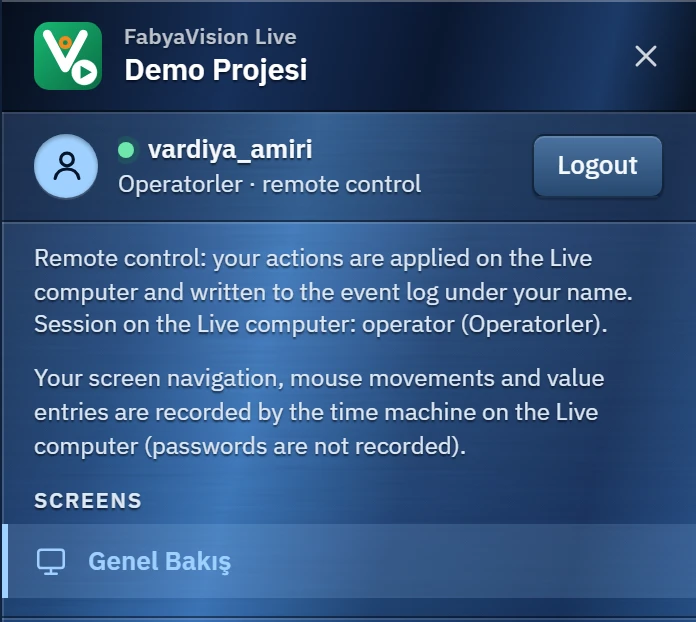
The user logs on in the browser as usual (Remote monitoring). If control is enabled in the project, the badge on the login screen reads Monitoring and permission-based control. The system menu of the logged-on user shows their name, authorization group and remote control; the note below it shows that actions are applied on the Live computer and which operator session is currently open in Live.
 123
- Browser user — authorization group and remote control.
- Note — actions are carried out on the Live PC and logged under your name; the session in Live.
- Screen trail notice — if the time machine is enabled.
- Authorization: the authorization rules of screens, objects and functions are applied according to the authorization group of the browser user. Who is logged on at the Live computer does not change the authorization in the browser.
- Values: the value entered goes to the Live computer; the lower / upper limit, scaling and the driver write are handled there. The new value appears on the screen with the next update (about once per second).
- Event scripts (user events such as pressing a button or clicking) run in the browser; the tag writes of the script go to the Live computer. Operations of the script that belong to the Live computer, such as database, file or program execution, cannot be performed in the browser.
- Events not started by the user (screen opened / closed, On change, on loaded) run only navigation functions in the browser: the Live computer already performs the writes of these events, so nothing is written twice.
| Done from the browser | Only on the Live computer |
|---|---|
| Writing tags: input field, button, switch, slider, event functions | Closing the program, Change project… |
| Alarm acknowledgement, acknowledging all, shelving and unshelving, comments | Opening / closing the operator session in Live (Log on / Log off functions) |
| Recipe records (saving, approval) and loading to the PLC | Station settings (on-screen keyboard), entering connection passwords, firewall permission |
| Creating report records (manually), report approval and deletion | Time machine; importing a recipe from Excel (the button is not shown in the browser) |
| Event scripts (tag writes go to Live) | Scheduled tasks, drivers, simulator, alarm detection, logging, trigger-based report records |
If an action that is possible only on the Live computer is attempted, a short notification appears in the browser: This action is only possible on the Live computer.
Error messages in the browser
| Message | Meaning |
|---|---|
| This user has no remote control permission: the browser can only monitor. | Control was switched off or the user's group was removed. |
| The Live computer did not answer the action in time. | The Live window did not respond to the action within 10 seconds. Check from the value on the display or from the event log whether the action was carried out. |
| The Live window is not ready. · No project is open on the Live PC. | Live is starting or has no project open. |
| Limit, tag or authorization message (e.g. … value cannot be greater than the upper limit (100).) | Live rejected the action; the value was not written. |
Connected users and logging in Live
- Web viewers: on the Live computer, the Web viewers (n)… button in the system menu lists the connected browsers and TVs. For a user who has control, the Authorization column shows Remote control and the authorization group; the clients that sent a request in the last 20 seconds are listed. There is no separate indicator on the Live screen. Details: Remote monitoring › Web Viewers window.
- Event log: connecting and disconnecting are written as
sistementries: Remote control connected: vardiya_amiri (192.168.0.25, Operatorler), Remote control disconnected: …. - Action log: tag writes, alarm acknowledgment / shelving / comments, recipe transfers and report approvals are written with the user name in the form
vardiya_amiri (uzak · 192.168.0.25). See Live settings › Operator action log. - Program log: at logon,
Uzaktan izleme: giris vardiya_amiri - 192.168.0.25 (uzaktan kumanda: Operatorler)(Log files). - Time machine: remote control actions appear on the timeline with an orange marker; that user's screen can also be followed (Time machine).
To stop control immediately, switch off Remote control in Studio and load the project to Live, or set the user's group to Monitor only. A user whose group has been deleted from the project immediately only monitors.
In a redundant server pair, the action of a browser connected to the standby server is forwarded to the master (Server redundancy).
Same user from one computer only
A browser user can connect from only one computer at a time; this rule applies to all users, whether they monitor or control. Details: Remote monitoring › Same user from one computer only. Create a separate browser user for each person who controls: only then does the action log show who did what.
Security
- Plain HTTP: passwords and commands are not encrypted. Use a VPN for access over the internet; if the From anywhere access rule and remote control are both turned on, Studio reports an error.
- The project copy sent to the browser contains no connection addresses, passwords or database settings. The copy for a control session contains the code of the event scripts (the scripts run in the browser).
- If the time machine is enabled in the project, the screen navigation and input trace of the controlling user are recorded on the Live computer; a note saying so appears in the user's menu.