Convert: pre-analysis, PLC addresses and reports
The pre-analysis panel that Convert shows before the project is written (PUT/GET, OPC UA server, license), tags whose PLC address could not be resolved, the two solutions for optimized data blocks, the result screen and the report files written next to the .fvs.
This topic describes the last two steps of a conversion with Convert: the pre-analysis before the project is written to disk, and the Result screen. The main subject is PLC addresses: for the converted project to read data from the PLC in Live, every connected tag must have an address.
How PLC addresses are found
In TIA Portal, HMI tags are usually linked to a PLC variable by its symbolic name (for example DB_HMI.Hiz). The S7 driver of FabyaVision, however, reads the PLC by absolute address (for example DB1.DBD4). Convert translates the symbolic name into the absolute address using the offset information in the compiled data block of TIA Portal. That is why PLCs are always read even though they are not converted: with a TIA source, the data blocks used by the HMI tags and the PLC tag tables of all PLCs in the project are exported.
This translation is only possible in data blocks with standard access. In data blocks with Optimized block access enabled, the variable has no fixed address (Optimized data blocks). For WinCC Professional stations read from the project folder without opening TIA, symbolic addresses are not resolved because there is no PLC data.
The absolute address notations of the WinCC Professional S7-300 / 400 connections are also converted to the notation of the S7 driver: for data blocks DB156,DW100, DB6,D52.5, DB23,DD2, DB4,DBB7; for memory, inputs and outputs M13.5, Q5.2, I8.2, MW10, MD20 (German E = I, A = Q).
Pre-analysis
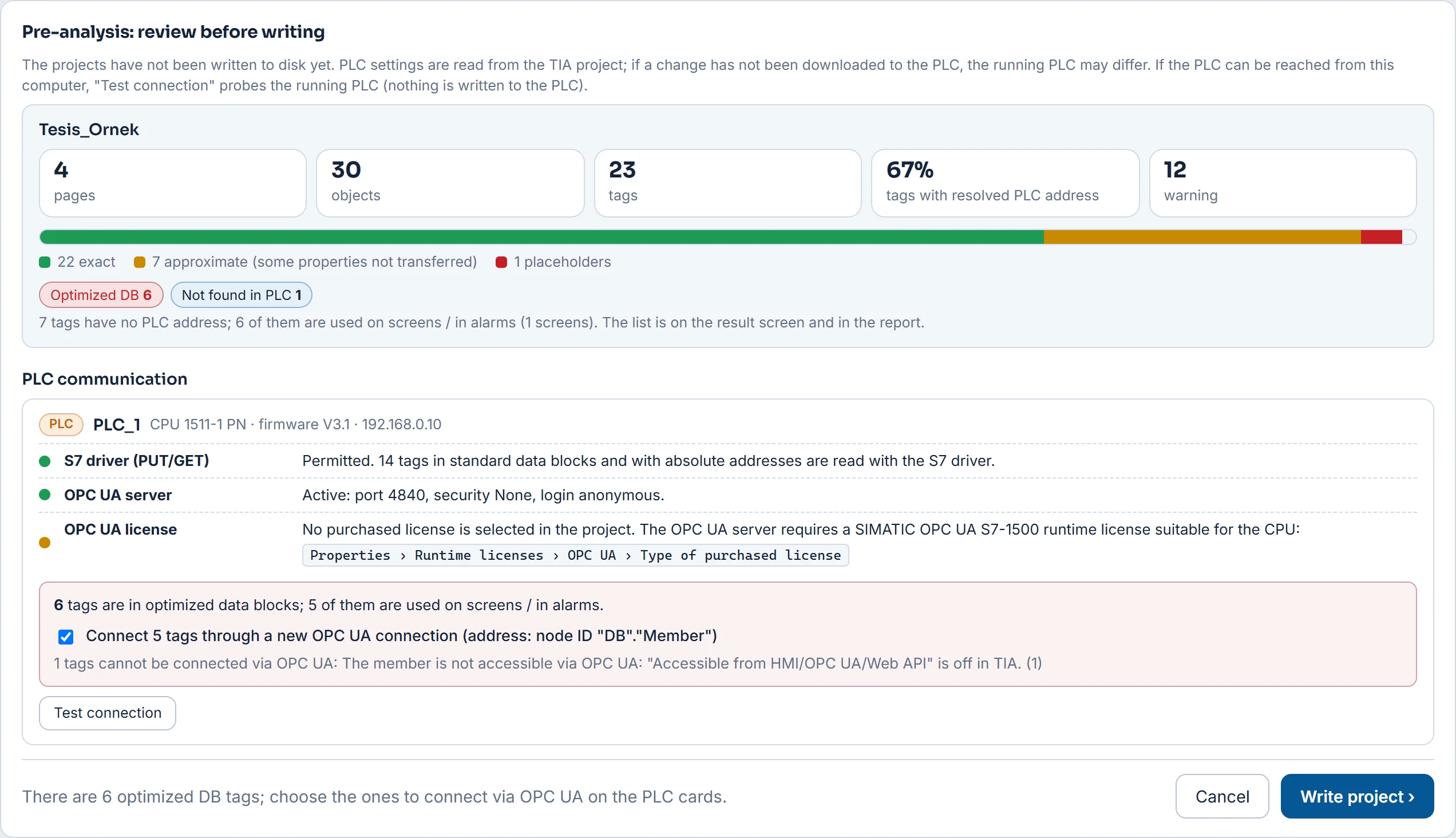
If Show the pre-analysis before writing is on in the Show the pre-analysis before writing step (default), the conversion pauses after the project has been converted in memory, and the Pre-analysis: review before writing panel opens. At this point, nothing has been written to disk yet.
 1234567
- Project summary — screens, objects, tags, share of tags with a resolved PLC address, warnings.
- Address issues — number of tags by reason.
- PLC card — CPU, firmware version, IP address.
- Communication — PUT/GET, OPC UA server, license (setting in the project).
- Optimized DB — tags to be connected via OPC UA.
- Test connection — probes the running PLC.
- Cancel / Write project — stops without writing anything / writes the project.
- Project card: for each project, the number of screens, objects and tags, the share of tags whose PLC address was resolved, the number of warnings, the conversion quality bar (exact / approximate / placeholder) and the number of tags without an address by reason.
- PLC communication: a card for each PLC to which the tags of these HMIs are connected or that has optimized tags: CPU, firmware version, IP address and the rows below.
- Write project completes the conversion; Cancel stops it without writing anything.
If the panel is turned off, the pre-analysis is not shown; the Connect optimized DB tags via OPC UA option is applied directly.
Rows on the PLC card
The rows show the setting in the TIA project. If the project has not been downloaded to the PLC, the running PLC may differ. The location of the setting in TIA Portal is given with TIA's English menu names.
| Row | What it shows |
|---|---|
| S7 driver (PUT/GET) | Permitted: tags in standard data blocks and tags with absolute addresses are read with the S7 driver. Deactivated in the project: the S7 driver cannot read any tag from this PLC; in TIA Portal, Properties › Protection & Security › Connection mechanisms › Permit access with PUT/GET communication from remote partner must be enabled and downloaded to the PLC. S7-300 / 400 do not need this setting. |
| OPC UA server | Active: port, security and logon method. Deactivated in the project: Properties › OPC UA › Server › General › Activate OPC UA server. S7-300 / 400, S7-1500 with firmware older than 2.0 and S7-1200 with firmware older than 4.4 have no OPC UA server. |
| OPC UA license | Warning if the server is enabled but no purchased license is selected: Properties › Runtime licenses › OPC UA › Type of purchased license. |
| Certificate, Login | If the PLC does not accept client certificates automatically, Live's certificate must be added to the PLC's trusted list. If the PLC does not allow anonymous login, a user name is entered in the connection and the password is entered on the Live computer (Connection security). |
Test connection
If the IP address of the PLC is known, the card has a Test connection button. If the PLC can be reached from this computer, the running PLC is probed: whether the S7 port (102) opens, whether the OPC UA port opens and whether there is a response to the first message of the OPC UA protocol. Nothing is written to the PLC and no session is opened. Results: open, closed (connection refused), no response; for OPC UA additionally OPC UA server responded or port open, no OPC UA response. If neither responds, the PLC cannot be reached from this computer (network, IP address or firewall); the settings in the project still apply.
Optimized data blocks
In S7-1200 and S7-1500, variables in data blocks with Optimized block access enabled have no fixed byte address. Because FabyaVision's S7 driver accesses a variable by its absolute address, it cannot read or write these tags. Convert offers two solutions.
1. Reading via OPC UA (the PLC program does not change)
When Connect optimized DB tags via OPC UA is on, the Connect … tags through a new OPC UA connection check box on the PLC card of the pre-analysis is selected. If it remains selected, Convert:
- Adds one OPC UA connection per PLC, named
<PLC adı>_OPC_UA. The IP address is the address of the PLC; port, security and login come from the OPC UA server setting in the project. - Moves the suitable tags to this connection and writes the node ID into their addresses, for example
nsu=http://www.siemens.com/simatic-s7-opcua;s="DB_Motor"."Hiz". The namespace URI is used instead of the namespace index. - Lists members that are write-protected in the PLC as read only in the report.
Optimized tags that cannot be moved remain without an address, and the card states the reason: the member does not exist in the data block; TIA's Accessible from HMI/OPC UA/Web API setting is off for the member; the member is a DTL (published as a structure in OPC UA). No mapping at all is done for a PLC in these cases: S7-300 / 400 or a firmware version without an OPC UA server; Standard SIMATIC server interface is off on the OPC UA server; the security policy does not match FabyaVision (None or Basic256Sha256 must be enabled); both anonymous and user name / password logon are disabled.
For the connection to work in Live, the OPC UA server must be activated in the PLC and an OPC UA runtime license must be assigned to the CPU. Driver details: OPC UA.
2. Switching the data block to standard access
In TIA Portal, clear Optimized block access in the properties of the data block concerned, compile and download the PLC, and convert the project again. For FB instance data blocks, this setting is in the FB itself.
Causes of address problems
| Cause | Meaning | What to do |
|---|---|---|
| Optimized DB | Optimized block access is enabled in the data block: the variable has no fixed byte address. | One of the two solutions above. |
| Indirect address | The address is indexed by a tag (%DB[tag]…); the S7 driver does not read indirect addresses. | Enter the address manually in Studio, or use a variable with a fixed address on the PLC side. |
| Not found in PLC | The data block, DB member or PLC tag does not exist in the exported PLC data. The PLC may not have been compiled, or the HMI tag may point to an old name. | Compile the PLC in TIA Portal, correct the connection of the HMI tag and convert again. |
| No PLC data | The PLC of the connection was not part of the conversion: it is in another project, or the source was read without TIA. | Convert from a TIA project or package that also contains the PLC. |
| Invalid address | An address was found but it does not match the driver's format. | Correct the address in Studio (Tag addresses). |
| No address information | The tag has no address or PLC variable information. | Enter the address in Studio. |
A tag without an address is still added to the project. In Studio, Check the project reports the error No address entered for these tags.
Result screen
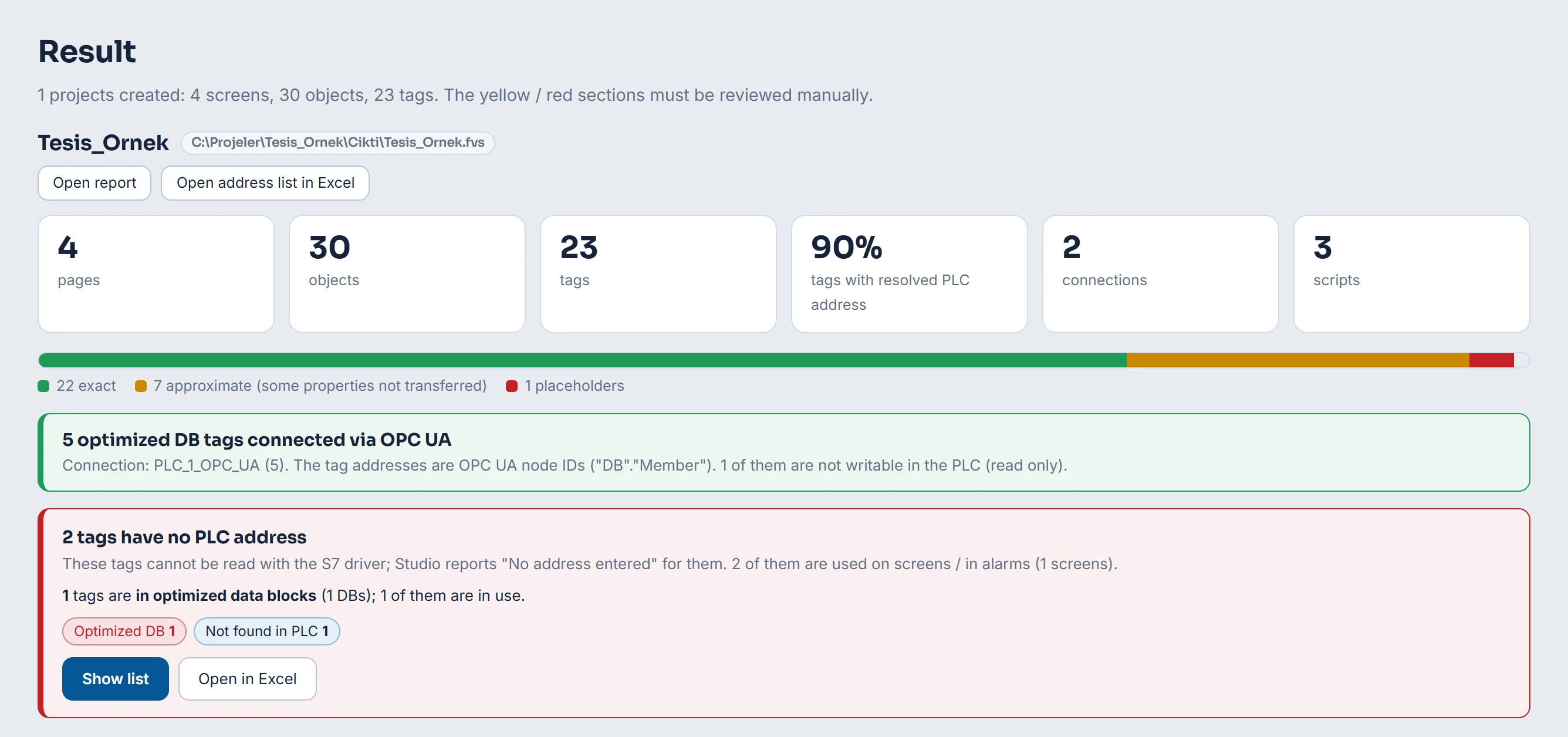
A card opens for each project:
- Summary cards: number of screens, objects and tags, share of tags with a resolved PLC address, number of connections and scripts; below them, the conversion quality bar.
- OPC UA card (green): how many optimized tags were moved to which OPC UA connection.
- Address card (yellow or red): the number of tags without a PLC address, how many of them are used on screens / in alarms, and the breakdown by reason. Show list goes to the PLC addresses tab; Open in Excel opens the CSV list.
- Buttons: Open report, Open address list in Excel and, if the package was kept, Open package folder.
 12345
- Open report / Open address list in Excel — files written next to the .fvs file.
- Summary — screens, objects, tags, share of tags with a resolved PLC address, connections, scripts.
- Conversion quality — exact / approximate / placeholder.
- OPC UA — the connection to which the optimized DB tags were moved.
- Address warning — tags without a PLC address.
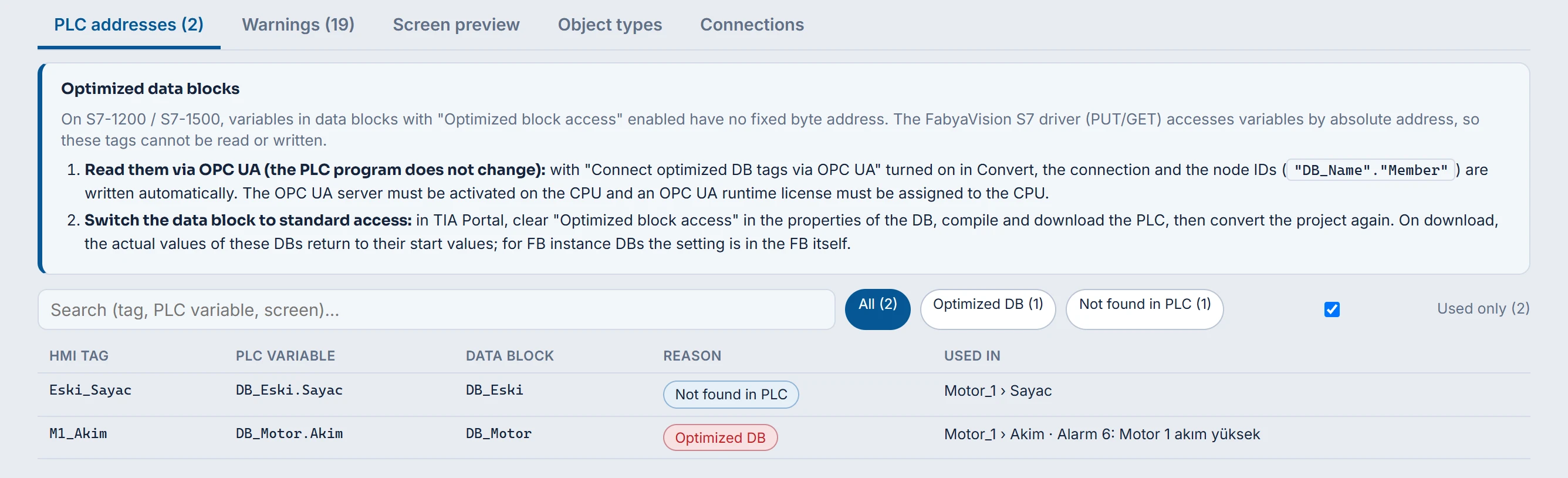
The tabs below the card: PLC addresses (the tab that opens first if there are address problems), Warnings (all report lines; filter by level and search), Screen preview (design view with the FabyaVision drawing engine; values and animations do not run), Object types (exact / approximate / placeholder per WinCC object type) and Connections (driver, IP address, number of tags; for a connection whose IP is unknown, not entered is shown).
On the PLC addresses tab, if there are optimized data blocks, an explanation of the two solutions comes first. The list can be searched; the reason chips filter the list; Used only shows only the tags used in screens, alarms, logs or recipes. Columns: HMI tag, PLC variable, data block, reason and places of use (such as Motor_1 › Akim, Alarm 6: …).
 123456
- PLC addresses — the first tab if there are address issues.
- Optimized DB explanation — two ways to solve it.
- Search — tag, PLC tag, screen.
- Reason chips — filter the list by reason.
- Used only — tags used on a screen / in an alarm.
- List — HMI tag, PLC tag, data block, reason, places of use.
Files written
Convert writes the following next to the .fvs file of each project (in the example the project is Tesis_Ornek.fvs):
| File | Content |
|---|---|
Tesis_Ornek_Dönüşüm_raporu.html | Printable report that opens in the browser: summary and quality, all tags without a PLC address, tags connected via OPC UA, PLC communication, connections, object types, all warnings. |
Tesis_Ornek_PLC_adres_sorunları.csv | Only if there are address issues. A semicolon-delimited list that Excel opens directly. Columns: HMI tag, PLC variable, data block, reason, details, connection, type, usage count, places of use. |
Tesis_Ornek_Paket (folder) | Only if Also keep the export package is on and the source is TIA or a project folder: the package for converting again on a computer without TIA Portal. |
The texts of the report and CSV files and the suffix of the file names are in Convert's interface language. If the report or a list cannot be written, a warning is logged; the project still counts as written.
After the conversion, in Studio
- Open and check the project
Open it with Open in Studio and run Check the project with F7. Tags without an address and connections without an IP address appear in the list.
- Complete the connections
In the Connections table, check the IP addresses and the security and logon settings of the OPC UA connection.
- Test with the real PLC
Run the project in Live with the real PLC and verify the values, animations and events one by one.