Converting a TIA Portal project (Convert)
FabyaVision Convert generates Studio projects (.fvs) from the HMI / SCADA devices in a TIA Portal project (Basic / Comfort / Advanced panels, WinCC Unified, WinCC Professional). Requirements, sources, steps, settings and what is transferred.
FabyaVision Convert is a program separate from Studio and Live. It reads the screens, tags, connections, lists, scripts and (depending on the family) alarms of the HMI devices in a TIA Portal project and writes a separate Studio project (.fvs) for each HMI device. It writes nothing to the TIA project; it only reads it.
Supported devices
| Device in TIA Portal | How to read it |
|---|---|
| Classic panels: Basic, Comfort, Advanced | With TIA Portal (open TIA instance or project file) or from an export package created on a computer with TIA Portal. |
| WinCC Unified | With TIA Portal V18 or later, or from the package. In TIA Portal V17, Unified devices are shown as not supported. Unified text lists require V20 and JavaScript script modules require V19; with an older version the category remains empty and its header states the required version. |
| WinCC Professional (PC station) | With TIA Portal, from the package, or from the project folder without opening TIA. The station must have been compiled in TIA Portal. |
PLCs are not converted. Convert reads the data blocks and PLC tag tables of the PLCs only to find the addresses of the HMI tags (PLC addresses).
Requirements
- Installation: Convert is the FabyaVision Convert component of the setup program (Installation). It is opened with the FabyaVision Convert shortcut in the Start menu. It is a 64-bit program.
- TIA Portal: to read directly from TIA Portal, TIA Portal V17, V18, V19 or V20 must be installed on the same computer. Convert uses TIA Portal's own Openness interface; Openness is not part of the Convert installation, it is installed with the TIA Portal setup.
- Windows user: must be a member of the local group Siemens TIA Openness. If not, the Source step shows a warning and the following command (to be run in an administrator command prompt, with your user name):
net localgroup "Siemens TIA Openness" <kullanıcı> /add. Then sign out of Windows and sign in again. - Project version: projects saved with TIA Portal V15 up to the installed TIA version can be opened. A project saved with an older version is upgraded with the installed TIA Portal in a temporary copy and then opened; the original project does not change. The copy needs free disk space of twice the project size plus 512 MB. A project saved with a newer version than the installed TIA Portal cannot be opened.
- License: Convert requires a Convert license (
FV-CV-…). Without a license, Convert shows the license page at startup (License and activation). The trial version needs no license and has no conversion limit (Trial version).
On a computer without TIA Portal
If TIA Portal V17 – V20 is not installed, the two cards that connect to TIA are disabled and the card states the reason. Two options remain:
- WinCC Professional: the From project folder (without opening TIA) card reads the compiled stations in the project folder. Because no PLC data can be obtained, symbolic tag addresses are not resolved; tags with absolute addresses are not affected.
- Classic panels and Unified: when converting with Convert on a computer with TIA Portal installed, turn on Also keep the export package in the Also keep the export package step. A
<proje adı>_Paketfolder is created next to the.fvsfile. Copy this folder to the computer without TIA and open it with the Export package card.
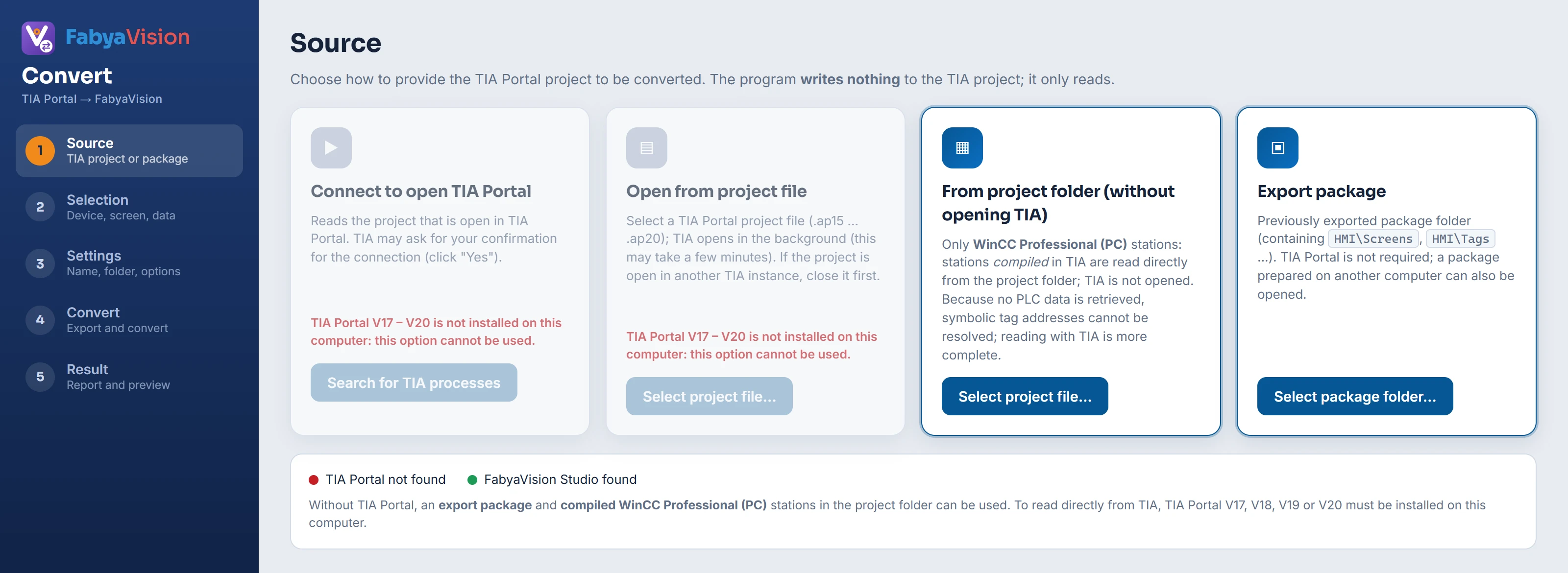 12345
- Connect to open TIA Portal — reads the project that is open in TIA Portal.
- Open from project file — TIA opens in the background and the project is loaded.
- From project folder (without opening TIA) — compiled WinCC Professional stations only.
- Export package — TIA Portal is not required.
- Environment — the TIA Portal version found and Studio.
Openness access approval
The first time Convert connects (and after Convert has been updated), TIA Portal asks for approval in the Openness access window. This window also appears on the screen for a hidden TIA instance, and the operation waits until approval is given. Convert detects the window and writes the following in the status line: TIA Portal is waiting for access approval: choose "Yes to all" (or "Yes") in the "Openness access" window on the screen. With "Yes to all" you will not be asked again.
Step-by-step conversion
- Select the source
Use one of the four cards:
Card What it does Connect to open TIA Portal Search for TIA processes lists the running TIA Portal instances and their open projects; select one with Connect. TIA Portal may ask for confirmation of the connection. Open from project file Use Select project file… to select a project file such as .ap20. TIA Portal opens invisibly in the background; with a large project, this takes a few minutes. If the project is open in another TIA instance, close it first.From project folder (without opening TIA) Compiled WinCC Professional stations only. Select the project file; the stations are read from the project folder. Export package Use Select package folder… to select the package folder saved by Convert. TIA Portal is not required. If you select a parent folder containing several packages, each subfolder is listed as a separate HMI device. While TIA Portal is opening, Stop is shown: the hidden TIA instance opened by Convert is closed; your own open TIA Portal is not touched.
- Select the devices and the content
In the Selection step, each HMI device is a card; each selected HMI becomes a separate
.fvs. Clicking a card opens its categories on the right (screens, text lists, scripts, alarms …); each category has a search, Select all and Clear. The PLC card cannot be selected: Address source: always read. The Always included section counts what is transferred regardless of the selection: cycles, connections, used graphics, HMI tags, and the PLC data blocks and PLC tag tables used by the HMI tags.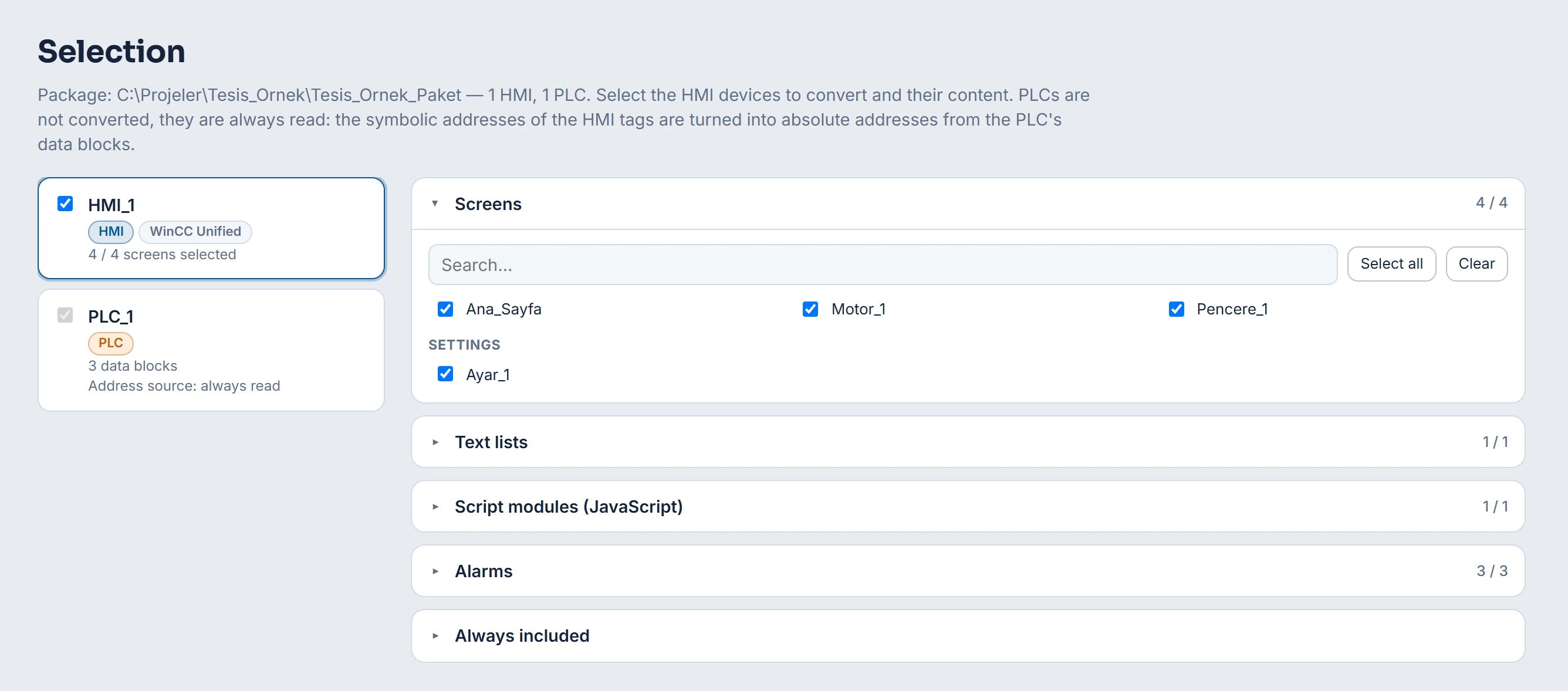 1234
Selection step: HMI device, the PLC that is the address source and the categories of the HMI. - HMI device — each selected HMI becomes a separate .fvs project.
- PLC — the address source; always read.
- Categories — screens, text lists, scripts, alarms; counter selected / total.
- Always included — data transferred regardless of the selection.
- Enter the name, file and options
In the Settings step, each HMI has a Project name row and a File to save (.fvs) row. The default file is
Belgeler\FabyaVision Projeleri\<HMI adı>.fvs; change it with Browse…. The path must end in.fvs. The options are listed in the table below.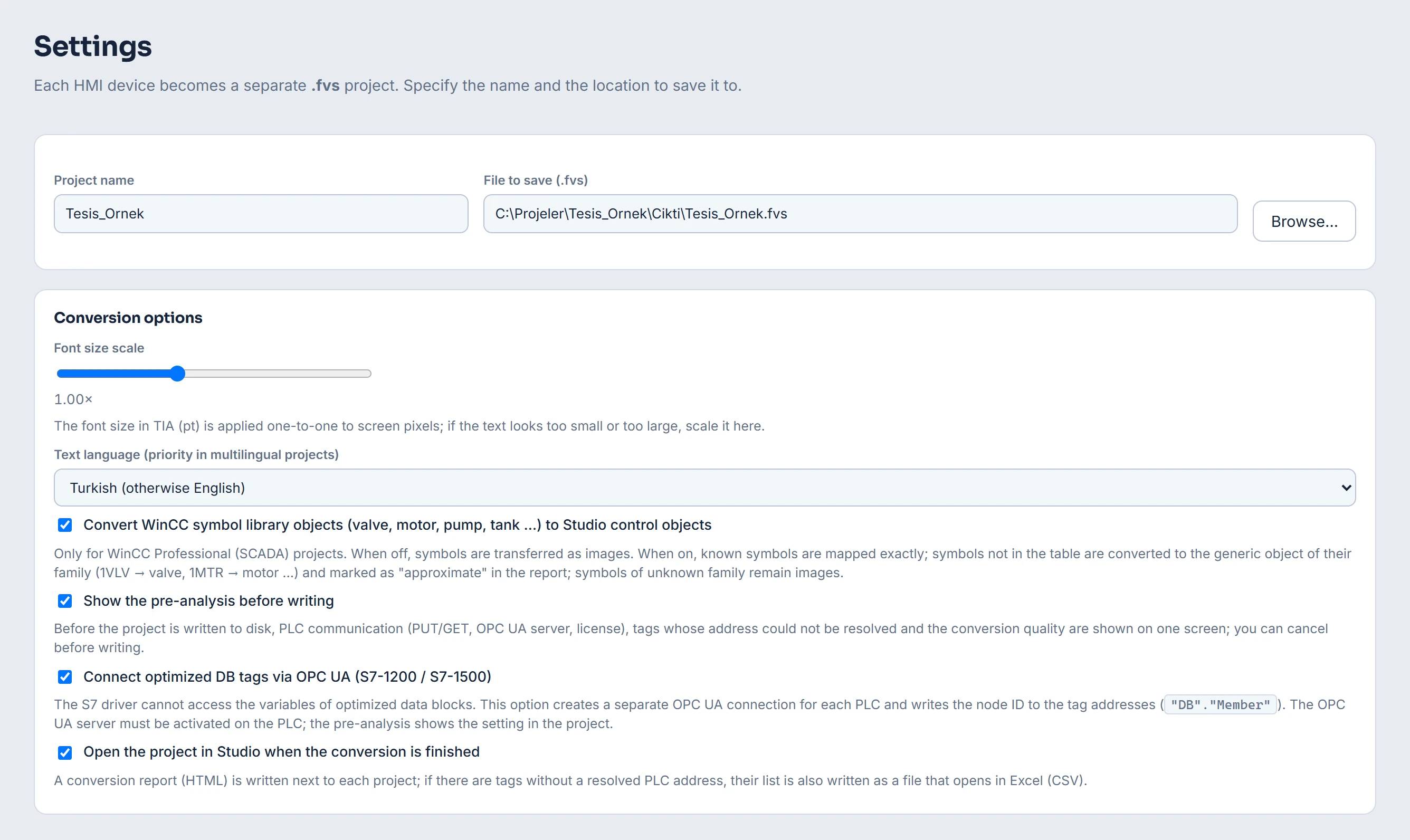 123456
Settings step: project name, file path and conversion options. - Project name / File to save — one row per HMI.
- Font size scale
- Text language — which language's texts are taken from a multilingual project.
- Show the pre-analysis before writing
- Connect optimized DB tags via OPC UA
- Also keep the export package — with the TIA or project folder source, copies the package next to the .fvs file.
- Run the conversion
Click Convert. A progress bar appears for each project, with the log below. Order: export from TIA or from the project folder, symbol mapping (in WinCC Professional, if needed), conversion in memory, pre-analysis, writing to disk. Stop can be used at every stage; since writing is the last stage, no partial
.fvsis written. If the conversion is stopped or an error occurs, the log shows the reason; Go back returns to the settings. With a TIA source, if the TIA connection has been closed, Convert returns to the source step: open the project again to convert it again. - Review the result
The Result step shows the summary, address problems, warnings, screen preview and connections (Result screen). Open in Studio opens the first project in Studio; Open folder shows the file in Windows Explorer; New conversion returns to the source step.
Conversion options
- Font size scale
- 0.70× – 1.50×. The font size in TIA (pt) is applied unchanged as screen pixels; if the texts look too small or too large, scale them.
- Text language (priority in multilingual projects)
- Turkish (otherwise English) or English (otherwise Turkish): which language's texts are taken from a multilingual TIA project.
- Convert WinCC symbol library objects … to Studio control objects
- WinCC Professional only. Symbols such as valves, motors, pumps and tanks are converted to Studio objects; if this option is off, they are transferred as images.
- Show the pre-analysis before writing
- On by default. Before the projects are written, PLC communication and address issues are shown in a panel (Pre-analysis).
- Connect optimized DB tags via OPC UA (S7-1200 / S7-1500)
- On by default. Creates one OPC UA connection per PLC for the tags in optimized data blocks (Optimized data blocks).
- Open the project in Studio when the conversion is finished
- On by default. Once the projects are written, the first project opens in Studio (same as the Open in Studio button in the Open in Studio step). If Studio cannot be found on this computer, it is not opened.
- Also keep the export package
- With a TIA or project folder source, copies the temporary export package next to the
.fvsas a<proje adı>_Paketfolder. If the source is already a package, this option is not shown.
Symbol mapping (WinCC Professional)
Some of the symbol library objects in WinCC Professional screens have an exact Studio equivalent; these are converted automatically. For symbols without an exact equivalent, the WinCC symbols: select the Studio equivalent panel opens during the conversion. Each row shows the WinCC drawing and the screens in which it is used, and there you select the Studio object (Keep as image, the suggested objects, or the whole Studio library with Select from library…) and the Direction. Keep all as image keeps all of them as images; Continue resumes the conversion. The choices you change are remembered on this computer and are preselected in the next conversion. Symbols converted by an estimate from their family are marked as approximate in the report.
What is transferred and what is not
| Family | Transferred | Not transferred |
|---|---|---|
| Basic / Comfort / Advanced | Screens, pop-up windows, templates, slide-in screens; HMI tag tables; text and graphic lists; VBScript scripts; cycles; connections; visibility and appearance animations; button events (set / reset bit, write value, open screen, call script …). | Alarm definitions, recipes, users and logs (Openness does not provide them); symbol library objects, faceplates, function keys, screen events. |
| WinCC Unified | Screens and screen groups; objects (shape, text, I/O field, button, switch, slider, bar, gauge, screen window, alarm and trend view …); tag dynamizations; known patterns of event scripts (SetBitInTag, SetTagValue, ChangeScreen …); tags; alarm classes, discrete and analog alarms; text lists; connections; start screen. JavaScript modules are added as source code and are not executed. | Graphic lists (the color of the status indicator is guessed from the list name); Enabled, script and expression dynamizations; multi-bit mapping; trend curves; faceplates and custom controls (a dashed red placeholder remains); unrecognized script code. |
| WinCC Professional | Objects on compiled screens (including rotated objects and connector lines); symbol library objects (as Studio objects or as images); tag dynamics; VBS events of buttons; tags, connections, text lists; alarms and alarm classes (text, trigger tag, acknowledgment tag, colors); the start screen; VBS modules; images. | Archives, recipes, users; Enabled and Operation animations; image files in WMF format. The input / output mode of the I/O field and the position of some objects may not be read reliably from the screen file (the report says so). |
In the report, each object is counted as exact (has an equivalent), approximate (some properties were not transferred) or placeholder (no equivalent). Everything that could not be transferred is written to the Warnings list.
In WinCC Professional, tags, connections, text lists and alarms are read from the WinCC SQL Server instance (WINCC). If this instance cannot be reached, the screens are still transferred; this information remains empty and the reason is written to the log. If the trigger tag of an alarm does not exist in the project, the alarm is added without a tag and this is written to the report as a warning.