License and activation
Full version license files, the license page that opens when the required license is missing, the License Manager, annual licenses and the online license check that the program performs when it can reach the internet: what is sent and what happens when a license is disabled.
This topic describes the full-version license. The period and activation rules of the trial version are in the topic Trial version. License terms and prices are outside the scope of this manual; for information, contact FabyaVision (www.fabyavision.com).
License files
- Each item is a separate file: every purchased item (Live or Studio tag capacity, tier upgrade, archive pack, web viewing, recipes, redundancy, time machine, OPC UA server, Notification Center, performance report, Convert) has its own license file. The file name is the product code, for example
FV-LV-1K-P.fvkorFV-RCP-P.fvk. The program combines the rights of all valid files on the computer. Previously issued files with the.lisansextension are also read. - Which program needs what: Live needs a Live or Studio license, Studio needs a Studio license (Studio includes Live), Convert needs a Convert license (
FV-CV-…). A redundant server pair is not set up without a redundancy license (FV-RED-…); Live then runs on its own. Live without a time machine license (FV-TM-…) does not record history (Time machine). - Binding: a license is bound to a computer's machine code or to a USB key. A license bound to a USB key is valid on whichever computer the key is plugged into. The licenses are stored in the
%ProgramData%\Fabyatek\FabyaVision\Lisanslarfolder (on the USB key inFabyaVision\Lisanslar). - Term: a product code ending in
-Pis a perpetual license, one ending in-Ais an annual license. The program warns at startup 30 days before an annual license ends. If the term ends while the program is running, the program does not stop; a warning appears in the center and comes back one minute after OK. Once closed, the program does not start again with the expired license.
Option licenses
The features below are separate license items. Without the license, Live still opens and the plant keeps running; only that feature does not work. The setting in the project is not deleted. After adding the license file, reopen Live.
| Product code | Property | Without a license |
|---|---|---|
FV-RED-… | Redundant server pair | Live runs as a single server and reports this. |
FV-TM-… | Time machine | Live does not record history; Time machine… does not appear in the system menu. |
FV-OPC-… | OPC UA server | The server does not start. The OPC UA server… window in the system menu and the program log state the reason. |
FV-NTF-… | Notification center (alarm rules, SMS) | Alarm notifications and SMS do not work. The Notification center… window in the system menu and the program log show the reason. E-mail for report plans works with FV-PRF-…. |
FV-PRF-… | Performance reports | Reports are not produced and plans do not run. The Report archive… window states the reason. |
License page
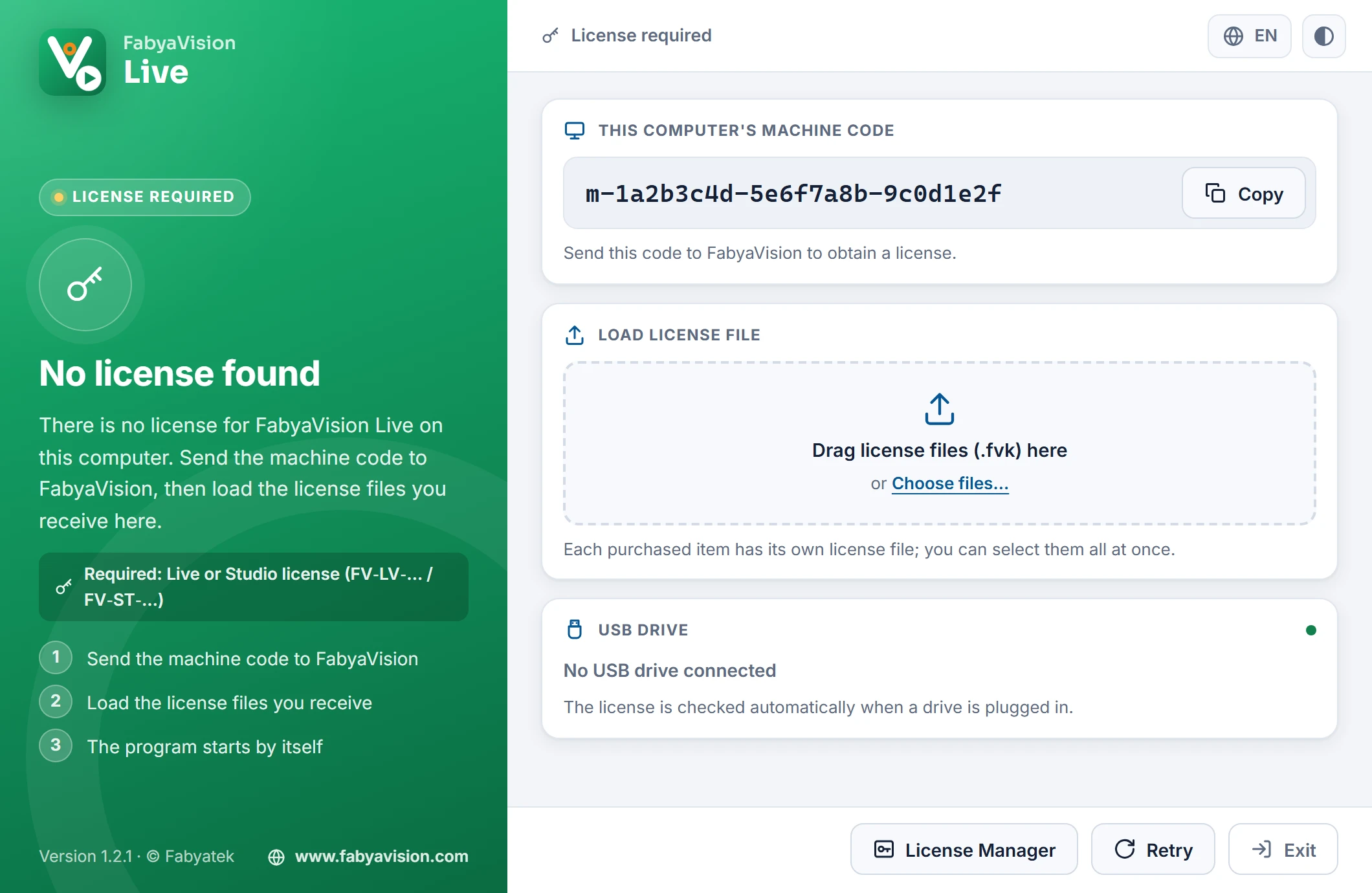
If Studio, Live or Convert does not find the required license on the computer at startup, the license page opens before the main window. The left part is in the color of the program and states the reason; on the right are the machine code, the area for loading license files and the list of USB drives.
 12345
- Reason — why the license could not be opened; below it, the required license.
- Machine code — send it to FabyaVision; Copy puts it on the clipboard.
- Load license file — drag in or select the .fvk files.
- USB drive — a plugged-in drive is checked within 3 s.
- License Manager · Retry · Exit
- Send the machine code
Copy the code on the This computer's machine code card to the clipboard with Copy and send it to FabyaVision.
- Load the license files
Drag all the
.fvkfiles you received onto the Load license file area, or select them together with Choose files…. The result for each file is shown below it: added, invalid file, belongs to another computer, revoked, could not be saved (no write permission) or could not be read. Valid files are copied to the license folder. - The program starts by itself
When the required license is found, the page says License found and the program starts. If the files have been loaded but the license is still not sufficient, The files were checked; the required license is still missing. is shown.
| Reason on the page | Meaning |
|---|---|
| No license found | There is no license for this program on this computer. |
| Required license missing | A license exists but does not cover this program (e.g. Convert without a Convert license). |
| Studio license required | The license on the computer is for Live only; Live continues to work. |
| The license belongs to another computer | The file was issued for another machine code. Move it with the License Manager, or request a new license with the code of this computer. |
| USB drive not connected | The license is bound to a USB drive; plug in the drive. |
| Invalid license file | The file is corrupted or has been modified. |
| The license has expired | The expiry date of the annual license has passed. |
| License revoked | FabyaVision revoked the license, or the license was moved to another computer (below). |
- The page rescans the licenses every 3 seconds: a plugged-in USB drive or a license added in the License Manager is found automatically. Retry scans immediately.
- The License Manager button (if installed) opens the License Manager; Exit or Esc closes the page without opening the program.
- At the top right, select the page language (installed languages only) and the light / dark theme.
- If the WebView2 Runtime is missing or the page cannot be opened, the old license window, which does the same jobs, appears: Copy, Load license file…, License Manager…, Retry, Exit.
License Manager
The License Manager lists, adds, backs up and moves the licenses on the computer and on a connected USB drive. It opens in Studio with Help›License Manager… and in the Start menu with FabyaVision License Manager; double-clicking a .fvk file in File Explorer opens it in the add window. When you change computers or transfer the license to a USB drive, all files on the computer are moved together; the transfer is re-signed on the FabyaVision server and requires an internet connection. The License Manager is only included in the full-version setup.
Online license check
License files work offline. In addition, if the computer can reach the internet, the full-version Studio, Live and Convert ask the FabyaVision license server for the status of their licenses. The purpose is to disable the copy left on the old computer of a license that has been revoked or moved to another computer.
- When
- About 30 seconds after the program starts, then every 6 hours while it is running. If the server cannot be reached, the check is retried after 15 minutes.
- Destination
https://fabyavision.com/api/lisans/durum(HTTPS, outgoing connection, port 443).- What is sent
- The serial number and binding of each license file on the computer (the machine code or USB drive code the file is bound to), the machine code of this computer, and the name and version of the program. No project, tag, PLC, user or production data is sent. As with every internet request, the server sees the IP address the request comes from.
- What is returned
- A signed state for each file registered on the server: active, revoked or moved. The states are stored on the computer (File and folder locations); they remain valid even if the internet connection is lost later.
| State | What happens |
|---|---|
| No internet or the server does not respond | Nothing changes. The license on a computer that never accesses the internet continues to work. |
| active, or no record on the server | Nothing changes. |
| revoked or moved, while the program is closed | That file is disabled on this computer. When the program starts, the license page says License revoked; the License Manager shows the file as Revoked. If the license page is about to appear at startup, the program asks the server once more: if FabyaVision has withdrawn the revocation, the program opens immediately. |
| revoked or moved, while the program is running | The program and the plant do not stop. A red strip appears at the bottom of the screen (License revoked by FabyaVision — the program will not start with it once closed.) and the warning License revoked opens in the middle; the warning returns one minute after OK. Live does not open new sessions for monitoring from a browser; Studio does not run Start Live or load to Live. Once the program is closed, it does not open again with this license. |
- There is no setting that turns the check off. If a firewall blocks this request on a computer with internet access, the check cannot be performed and the license continues to work offline.
- Lines written to the program log:
LISANS: …when the license is disabled,Lisans durumu sorulamadi (…)when the server cannot be reached (Log files).