Notification Center
Sends important alarms to selected contacts by SMS and e-mail: contacts, groups, rules, escalation steps, acknowledgment and maintenance mode behavior, message templates.
How it works
- In Studio, you define the channels, contacts, groups and rules in the Notifications section. These settings go to Live with the project.
- Live monitors alarm events. If an alarm matches a rule, the escalation chain of that rule starts.
- The message of each step enters the queue on the Live computer. Live sends the message, repeats failed attempts and writes the result to the delivery log.
- When the operator acknowledges the alarm, the chain stops and the next steps are not sent.
Prerequisites
| Topic | Required |
|---|---|
| License | Notification Center is a separate license item: FV-NTF (FV-NTF-P perpetual, FV-NTF-A annual). Without the license, Live does not run the alarm rules, and No Notification Center license (FV-NTF): notifications are not sent. appears in the window and the event log. |
| Report e-mail | If there is a performance report plan with e-mail, the e-mail service also starts with FV-PRF. Alarm rules and SMS still require FV-NTF. |
| Trial version | No license is required. E-mail and SMS work (Trial version). |
| Channel | At least one channel must be set up: e-mail and SMS. In a plant without internet, a GSM / LTE modem is used. |
| Alarms | The project must have alarms and alarm classes defined. For acknowledgment to stop the chain, the alarm class must require acknowledgment. |
Setting up notifications
- Open the section
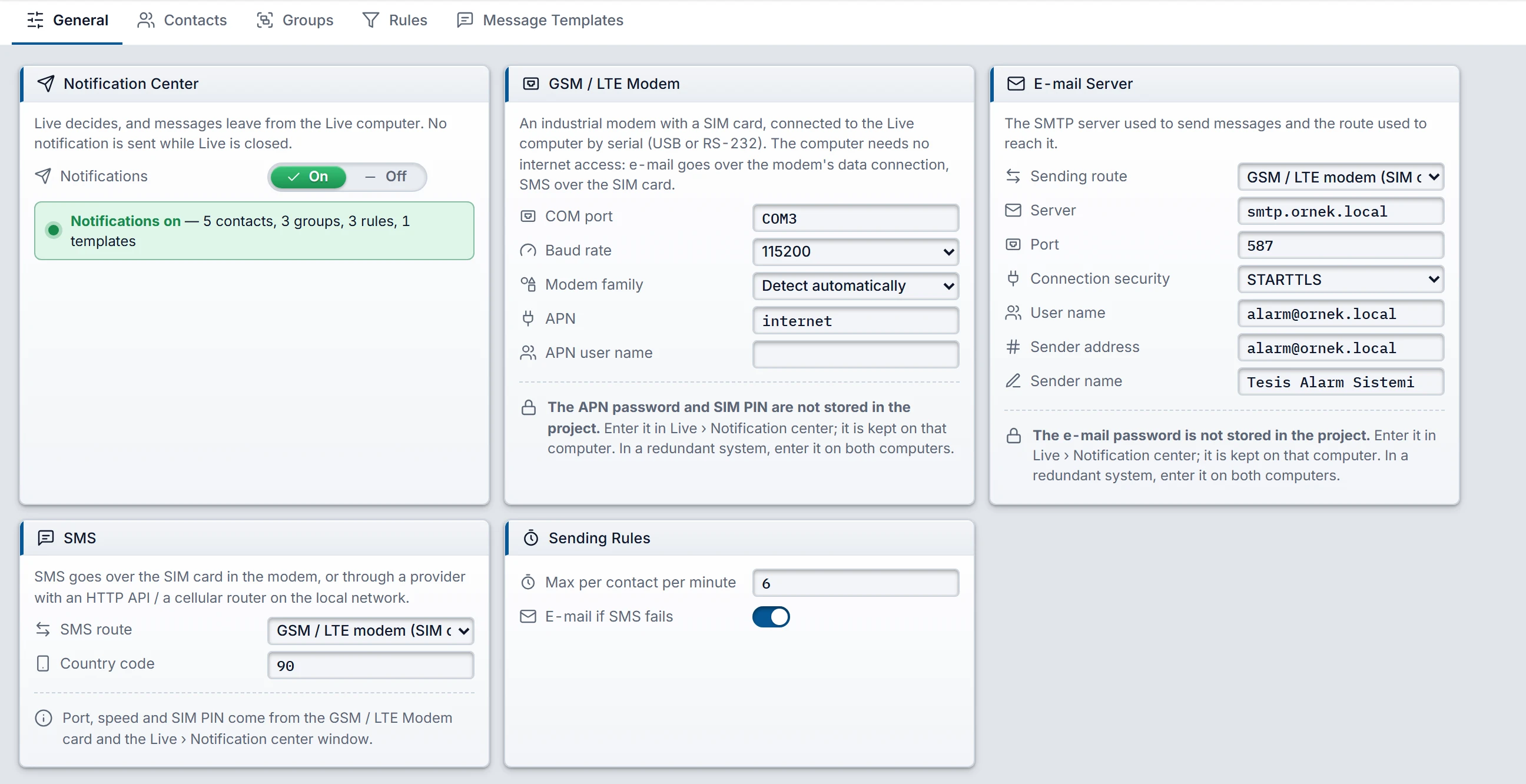
Click Notifications in the project tree. On the General tab, set the Notifications switch to On. When off, no alarm messages are sent. E-mails from report plans are still sent.
 12345
General tab: master switch, modem, e-mail, SMS and sending rules. - Notifications — the master switch. While it is off, no alarm messages are sent.
- GSM / LTE Modem — filled in if a channel uses the modem route.
- Sending route — whether e-mail goes through the modem or through the network of the computer.
- SMS route — from the SIM card or by HTTP API.
- Max per contact per minute — messages over the limit are reduced to a single summary.
- Set up the channels
Select the route that e-mail and SMS will take: Notification channels.
- Add contacts and groups
Enter the phone numbers and e-mail addresses on the Contacts tab. Divide the contacts into teams on the Groups tab.
- Write a rule
On the Rules tab, select which alarms produce messages. Add at least one step to the Escalation section on the right.
- Add a message template if necessary
If you do not select a template, the rule uses the default text.
- Check the project
The Problems list shows what is missing, such as a step with no recipient, a contact with no phone number, a rule that matches no alarm, or a COM port that is not entered.
- Enter the passwords in Live and test
Transfer the project to Live. Enter the passwords in the Notification Center window and run Send test… for each channel.
Contacts
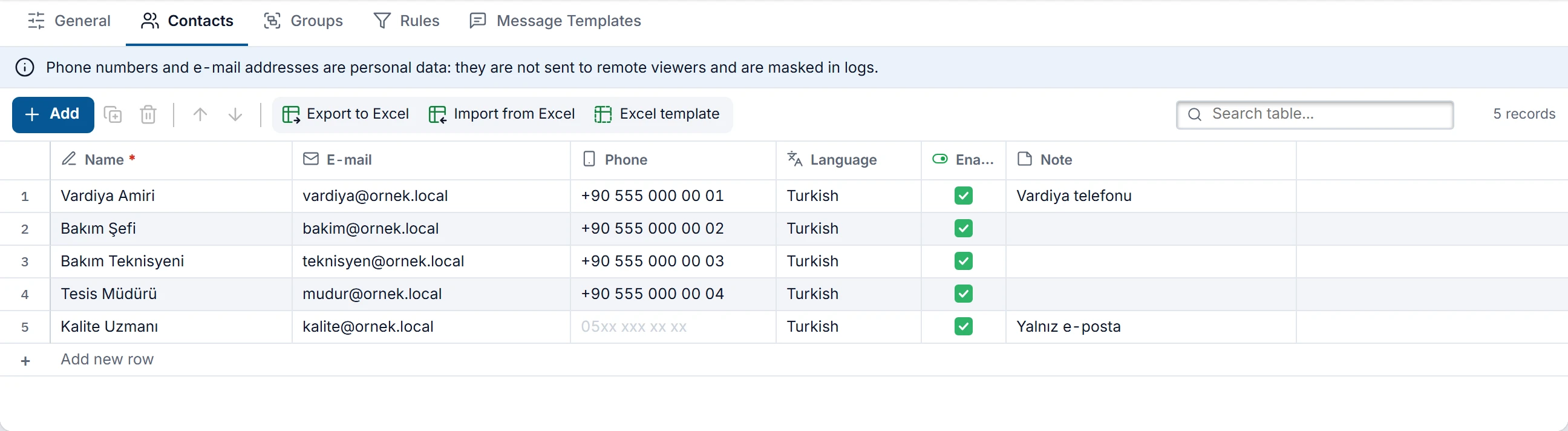
- Name
- Required and unique. This name appears in the delivery log, and scripts find the contact by this name.
- E-mail, Phone
- You can enter the phone number in the format
+90 555 000 00 00or0555 000 00 00. The Country code is added to a local number. - Language
- The language of the message. Selected from the project languages. The alarm text, class name, fault location and template text are sent in this language if a translation exists (Languages and texts).
- Enabled
- A contact whose check mark is removed stays in the group but receives no messages.
- Note
- Your own note. It is not included in the message.
When a contact is deleted, it is also removed from groups. The text ? deleted remains in the step of the rule, and the Problems list shows this as an error.
Groups
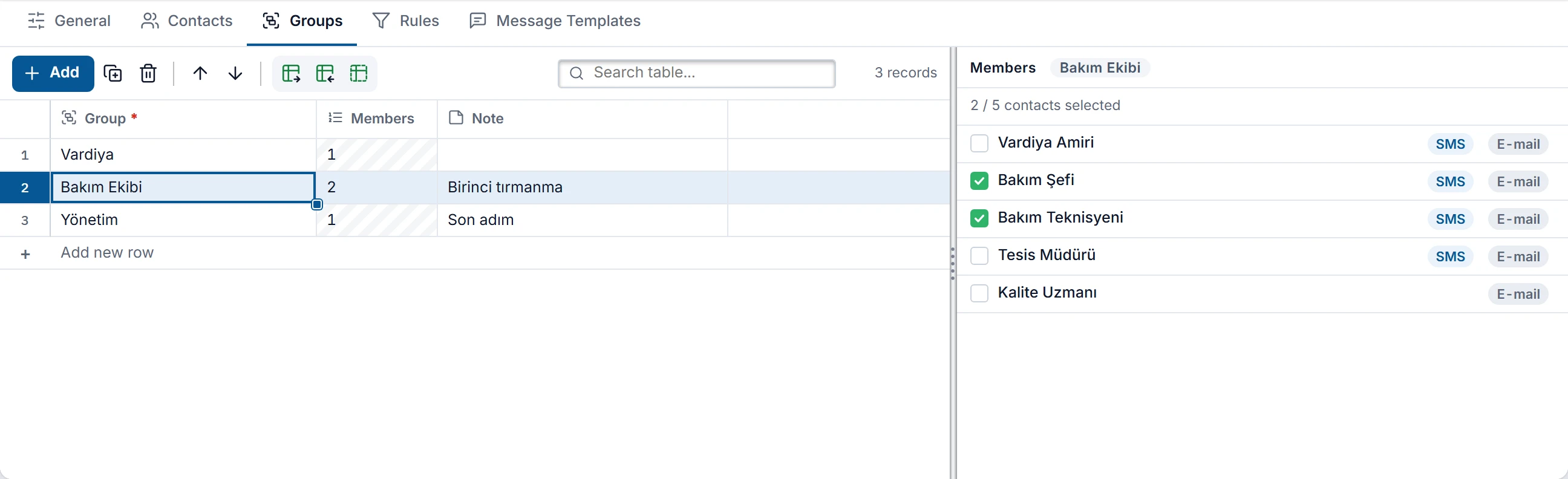
A group is for sending a message to more than one contact in one step. Select the group in the table and check the contacts in the Members list on the right. The SMS and E-mail badges in the list show which addresses have been entered for the contact.
Rules
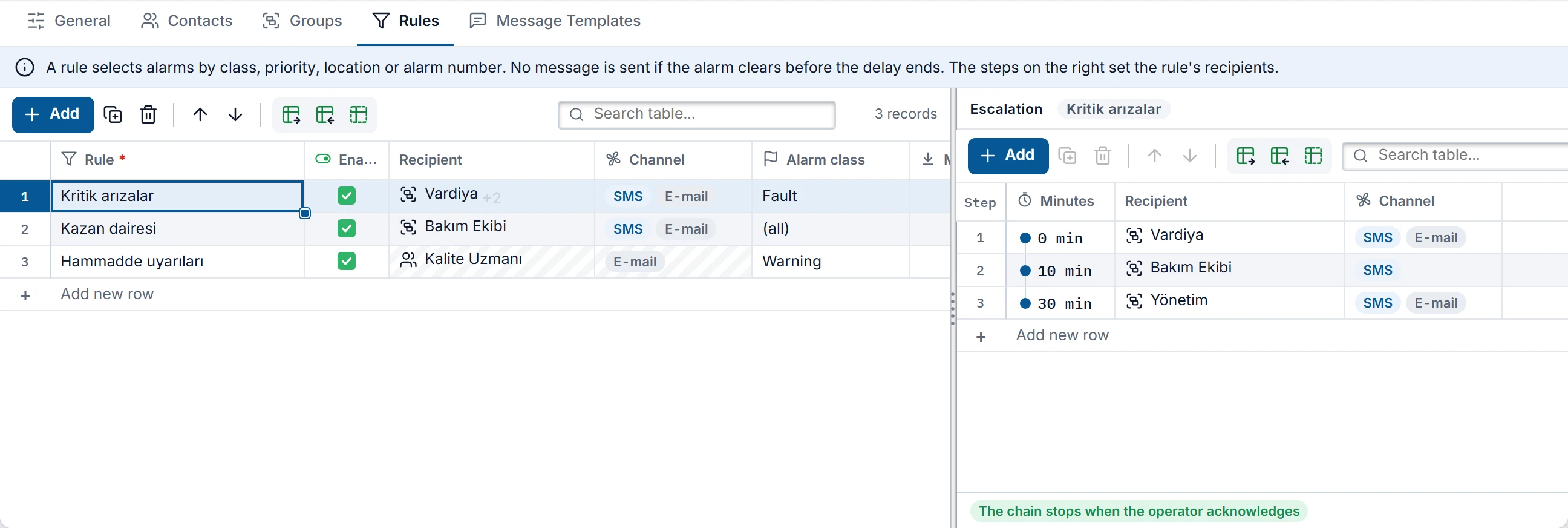
A rule selects which alarms generate a message. All selection fields are evaluated together, and an empty field matches every alarm. If an alarm matches more than one rule, the chain of each rule runs separately: the same person may receive two messages.

| Column | Meaning |
|---|---|
| Rule, Enabled | Unique name. A rule that is unchecked does not run. |
| Recipient, Channel | Calculated: the recipient of the first step and the channels used in the steps. |
| Alarm class | Only alarms of this class. (all): every class. |
| Minimum priority | 0 to 16. Alarms with a lower priority do not match. |
| Fault location | This text must appear in the fault location of the alarm. The search is not case-sensitive. |
| First alarm no., Last alarm no. | Alarm number range. If one of them is empty, there is no limit in that direction. |
| Incoming, Outgoing, Acknowledged | Which events generate a message. The default is Incoming only. |
| Delay (s) | 0 to 86400. The message is sent if the alarm lasts for this time. This filters out short alarms. |
| Message template | If empty, the (default) text is used. |
| Matching alarms | Calculated: the number of alarms that match this rule. If it is 0, the rule never runs. |
Escalation steps
Escalation means that the message goes to the next contacts for as long as the alarm persists. Each step has three fields.
- Minutes
- 0 to 1440. How many minutes after the alarm this step is reached. The time is counted after Delay (s) has elapsed. Steps run in order of minutes.
- Recipient
- A group or a contact. Messages go only to enabled contacts.
- Channel
- SMS, E-mail or SMS + e-mail. If both are selected, two messages are counted per contact.
When the chain stops
The note below the step list states when the chain stops, based on the alarm class of the rule: The chain stops when the operator acknowledges, The chain stops when the alarm clears or, if the two are mixed, The chain stops when the operator acknowledges in classes that require it, and when the alarm clears in other classes. For a rule with no class selected, the classes of the matching alarms are used.
| State | Result |
|---|---|
| The alarm clears before the delay ends | No message is sent and the rule closes for this alarm. |
| The operator acknowledges | The chain stops. If there are steps left to run, Escalation stopped appears in the delivery log. |
| An alarm whose class requires no acknowledgment clears | The chain stops. |
| An alarm whose class requires acknowledgment clears, no acknowledgment | If at least one step has been sent, the chain continues until acknowledgment. The alarm clearing does not stop the escalation. |
| The alarm comes in again while waiting for acknowledgment | The chain does not start from the beginning. This way, an alarm that comes and goes frequently also escalates. If an Alarm cleared message was sent, a new incoming message goes to the same contacts. |
Outgoing and Acknowledged messages
If Outgoing or Acknowledged is selected, the contacts of the steps reached by the chain receive a message that starts with Alarm cleared: or Alarm acknowledged (user):. A contact who is in several steps receives this message once. If no step was sent, these messages are not sent either.
If Incoming is not selected, the timed steps are not sent. In this case Outgoing and Acknowledged messages go to the recipients of the first step. If none of the three events is selected, the rule does not run.
Shelving and maintenance mode
An alarm shelved by the operator and maintenance mode behave the same way. The operator has taken responsibility for the problem, so this time does not count toward escalation. If the alarm is still active when this time ends, it does not silently disappear.
- No messages are generated during this time: step, outgoing, acknowledgment and summary messages are not sent. The clock of the chain stops.
- An alarm that clears during this time and does not require acknowledgment closes without producing any message.
- When the time expires, if the alarm is still active or awaiting acknowledgment, it behaves as if it had arrived at that moment: delay and step times are counted from that moment.
- Steps already sent are not repeated; the chain continues from the next step.
Messages that entered the queue before maintenance mode was turned on continue to be sent. Maintenance mode also continues after Live is reopened. Alarm shelving, however, is cleared when Live closes.
Sending rules
- Max per contact per minute
- 1 to 60, default 6. When the limit is exceeded, the remaining messages are held and a single summary is sent at the end of the minute: 5 new alarms, most important: … If the held messages include SMS and a phone number is entered for the contact, the summary is sent by SMS. This prevents the phone from filling up during an alarm flood.
- E-mail if SMS fails
- On by default. If an SMS permanently cannot be sent, the same message goes to the contact's e-mail address. A contact with no phone number also receives e-mail instead of SMS.
Message templates
A template sets the SMS text, the e-mail subject and the e-mail text. Add a row to the table, select the row and edit the boxes on the right. A placeholder button writes to the box that contains the cursor. A sample with the real alarm that you select appears on the right.
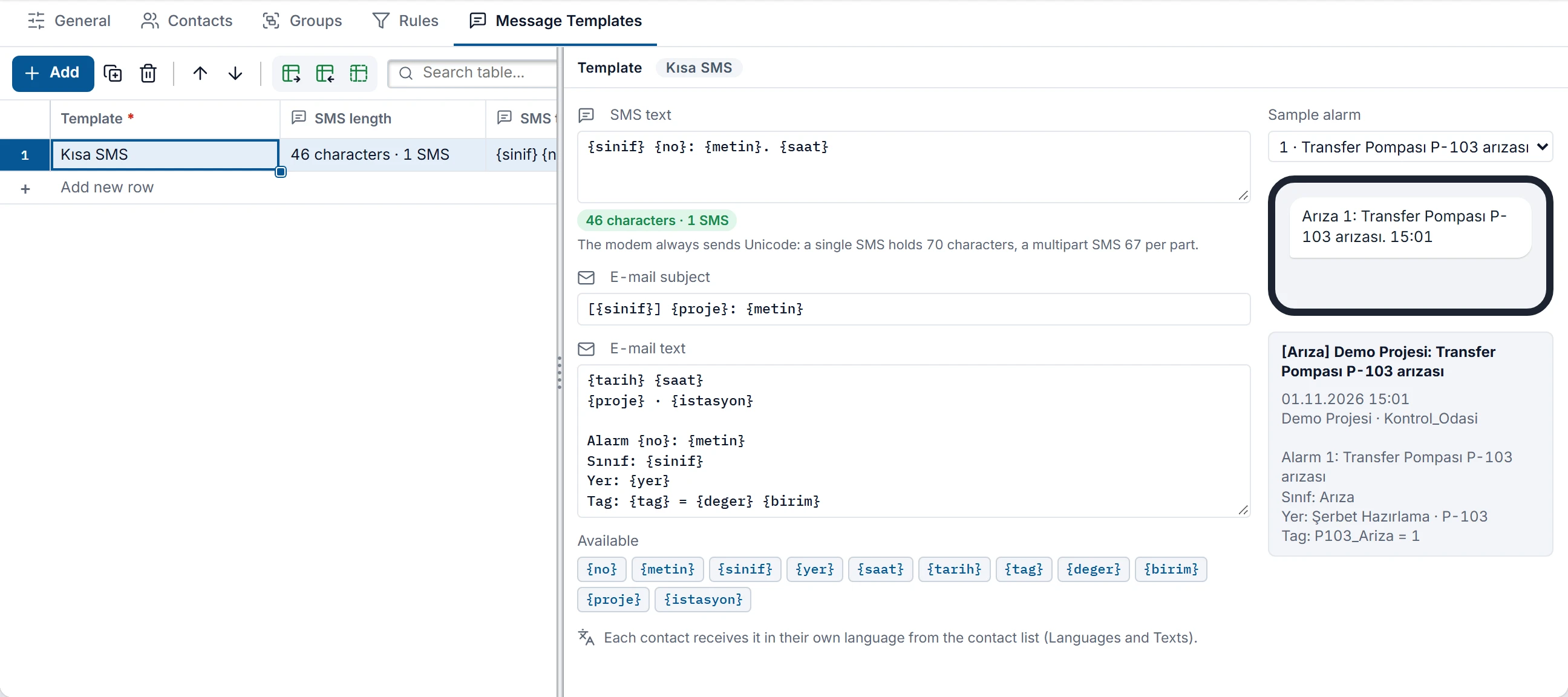
| Placeholder | Value | Placeholder | Value |
|---|---|---|---|
{no} | Alarm number | {tag} | Tag name |
{metin} | Alarm text | {deger} | The tag value that triggered the alarm |
{sinif} | Alarm class | {birim} | Unit |
{yer} | Fault location | {proje} | Project name |
{saat} | Time the alarm came in | {istasyon} | Station |
{tarih} | Date the alarm came in |
The default SMS text has the form {sinif} {no}: {metin}. {yer}, {saat}. {proje}. A template field left empty is filled with the default text. An unrecognized placeholder stays as it is and the Problems list shows a warning.
SMS length
The template screen fills the text with a sample alarm and measures it. A single Turkish letter lowers the limit of the whole message.
| Text | Single SMS | Per part in multipart |
|---|---|---|
| GSM alphabet only | 160 characters | 153 characters |
| Contains characters outside the alphabet, such as Turkish letters | 70 characters | 67 characters |
The exact limit may vary by provider. On the modem route, the second row always applies, and the meter shows it too (SMS: modem route). Keep the SMS template short and do not include the fault location and project name unless necessary.
Sending messages from a script
A script can also send messages for events that are not tied to an alarm, such as batch finished or shift summary. The contacts, channels and per-minute limit are the same. There is no equivalent in C scripts.
| Language | Call |
|---|---|
| JavaScript | Notify.send(target, text, channel) |
| VBScript | Notify.Send hedef, metin, kanal |
| Python | scada.notify_send(hedef, metin, kanal) |
- Target
- Contact name, group name, e-mail address or phone number. Name searches are not case-sensitive; contacts are checked first, then groups. A contact that is not enabled is not found.
- Text
- The message itself. No template is used, and it is not translated. Empty text is not sent. The e-mail subject is the project name and the first 60 characters of the text.
- Channel
sms,epostaorikisi(email,e-postaandbothalso work). Optional: if omitted, it goes to the contact's e-mail, or to the phone if the contact has no e-mail.- Return
- True if the message has been queued, false if not. A true result does not mean that the message has been delivered. Follow delivery in the delivery log.
If the message is not queued, the reason is written to the event log: Notify.send: recipient not found., Notify.send: this person has no address on this channel., Notify.send: maintenance mode is on, message not sent. If notifications are off, there is no license, the computer is a standby server or the script runs in a browser, Notify.send: notifications do not run on this station, message not sent. is written.
Examples by language: JavaScript, VBScript, Python.
Limitations and points to note
- The message queue is kept on disk. If the power fails right after a message is delivered, the same message may be sent once more.
- In a redundant system, the Live that is master at that moment makes the decision and does the sending. The queue is mirrored to the standby server, and after a takeover the new master continues. Enter the passwords on both computers and send a test from both computers (Server redundancy).
- Browser monitoring, TV and additional monitors do not generate messages.
- Performance report plans use the same contact list and the same e-mail settings.