Report plans and Report archive
Plans that run a performance report daily, weekly, monthly or at the end of shifts; recipients and file types; the Report Archive window in Live; error, missed plan and redundant server behavior.
A plan states at what times, for which period and with which file type a report is produced, and to whom it is sent. A report can have more than one plan: the same report can go to one person at the end of every shift and to management once a week. Plans are on the Performance Reports›Plans tab. You follow the results in Live in the Report Archive window.
Adding a plan
- Add a row
On the Plans tab, click Add. A new plan starts as Monday 07:00, PDF on, Excel off; it takes its period from the Default period value of the first report.
- Select the report and the repeat
Fill in the Report, Repeat (Every day, Weekly, Monthly) and Period columns.
- Enter the times
With the row selected, enter the time in the Time and Recipients field in the Time and Recipients section on the right and click Add time. For a weekly plan, Days appears; for a monthly plan, Day of month or Last day of month appears.
- Select the file type
Select at least one of the PDF and Excel columns.
- Select the recipients
The list contains the groups and contacts in the Notifications section. If no recipient is selected, the table shows archive only: the report stays on the Live computer.
- Select the missed-run behavior
For a time that passes while Live is closed, check If missed, send at startup or leave it empty.
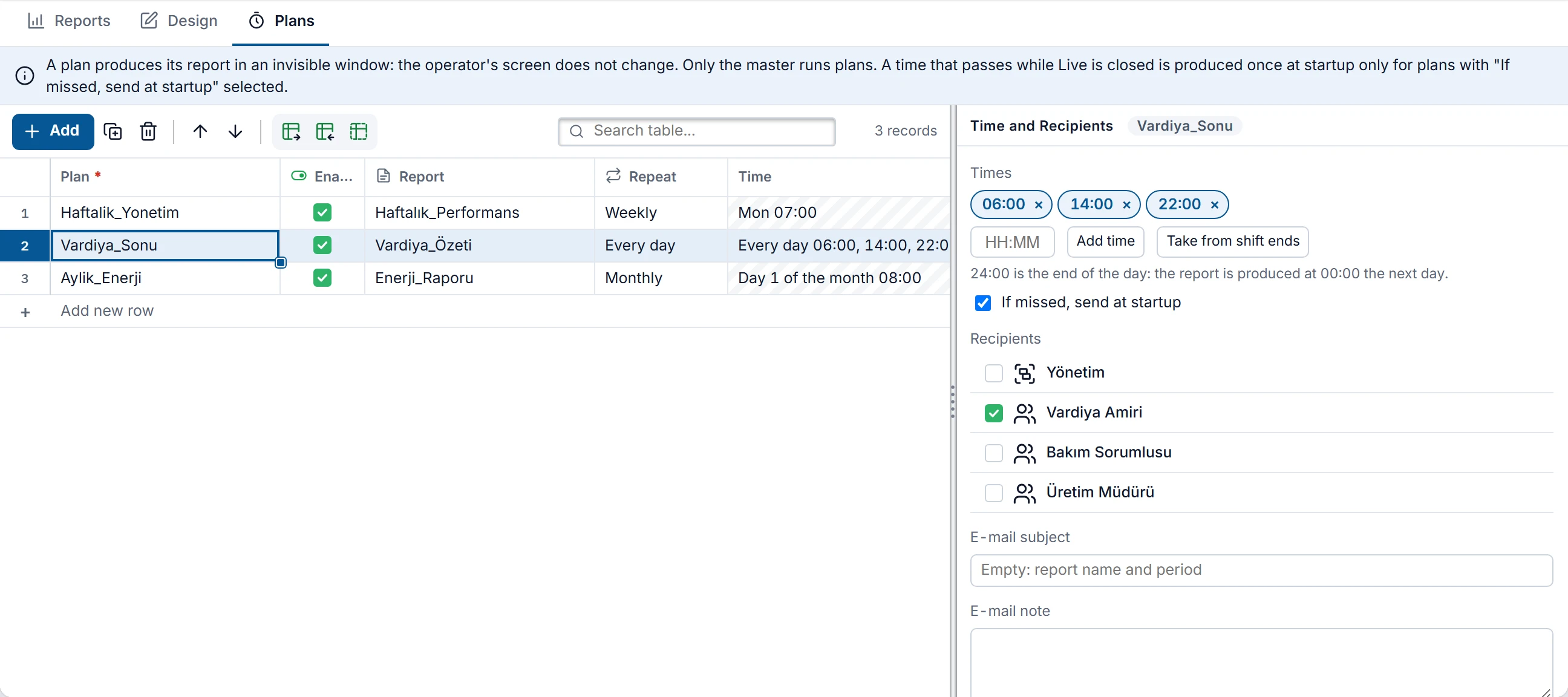 12345
- Times — a plan can have several times.
- Take from shift ends — fills in the times with the shift ends.
- If missed, send at startup — for a scheduled time that passes while Live is closed.
- Recipients — groups and contacts from the Notifications contact list.
- E-mail subject — if empty, the report name and period.
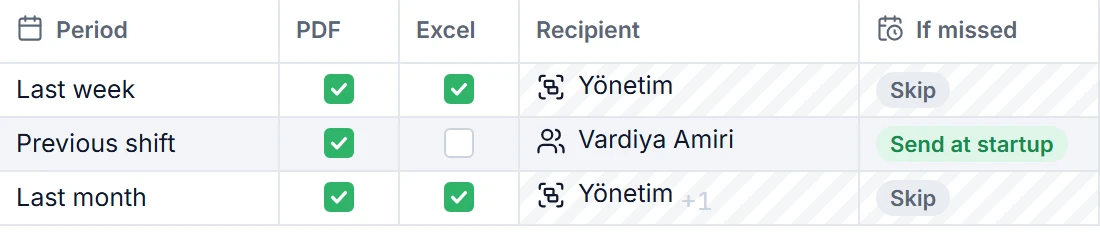
Time
| Repeat | Fields | Note |
|---|---|---|
| Every day | Times | If you enter 00:00, it is converted to 24:00. |
| Weekly | Days, Times | More than one day can be selected. |
| Monthly | Day of month (1 – 31) or Last day of month, Times | If the selected day does not exist in that month, the plan runs on the last day of the month. |
- Several times in one plan: the times are kept in order, and each one is a separate run.
- Shift ends: Take from shift ends replaces the list of times with the end times of the shifts in the project. A shift that ends at midnight is written as
24:00. Source of the shifts: Slices. - 24:00: the end of the selected day; the report is produced at 00:00 on the next day. Monday 24:00 is the moment that closes Monday. In weekly and monthly plans,
00:00is the start of that day. - Start time: production starts 15 seconds after the scheduled time. This delay gives the last archive rows of the period time to reach the disk. The period is still calculated from the scheduled time.
| Need | Repeat | Time | Period |
|---|---|---|---|
| A report for each shift, when the shift ends | Every day | Take from shift ends | Previous shift |
| Daily report when the day ends | Every day | 24:00 | Yesterday |
| Monday morning, last week | Weekly, Mon | 07:00 | Last week |
| On the 1st of the month, last month | Monthly, day 1 | 08:00 | Last month |
Recipients and e-mail
- Each person receives one message. A person who is both in a selected group and selected individually still receives one message.
- An inactive contact receives no messages. A contact without an e-mail address is skipped; F7 shows this as a warning.
- If E-mail subject is empty, the subject is the report title and the period. E-mail note is written below the indicator cards.
- If the e-mail server setting is missing, F7 reports an error: No e-mail server entered (Notifications › General): the report cannot be sent.
Report Archive window
Opened in Live from the system menu with Report archive…. The button appears if the project has at least one performance report. It is not available in browser monitoring, on the TV display or on additional monitor screens.
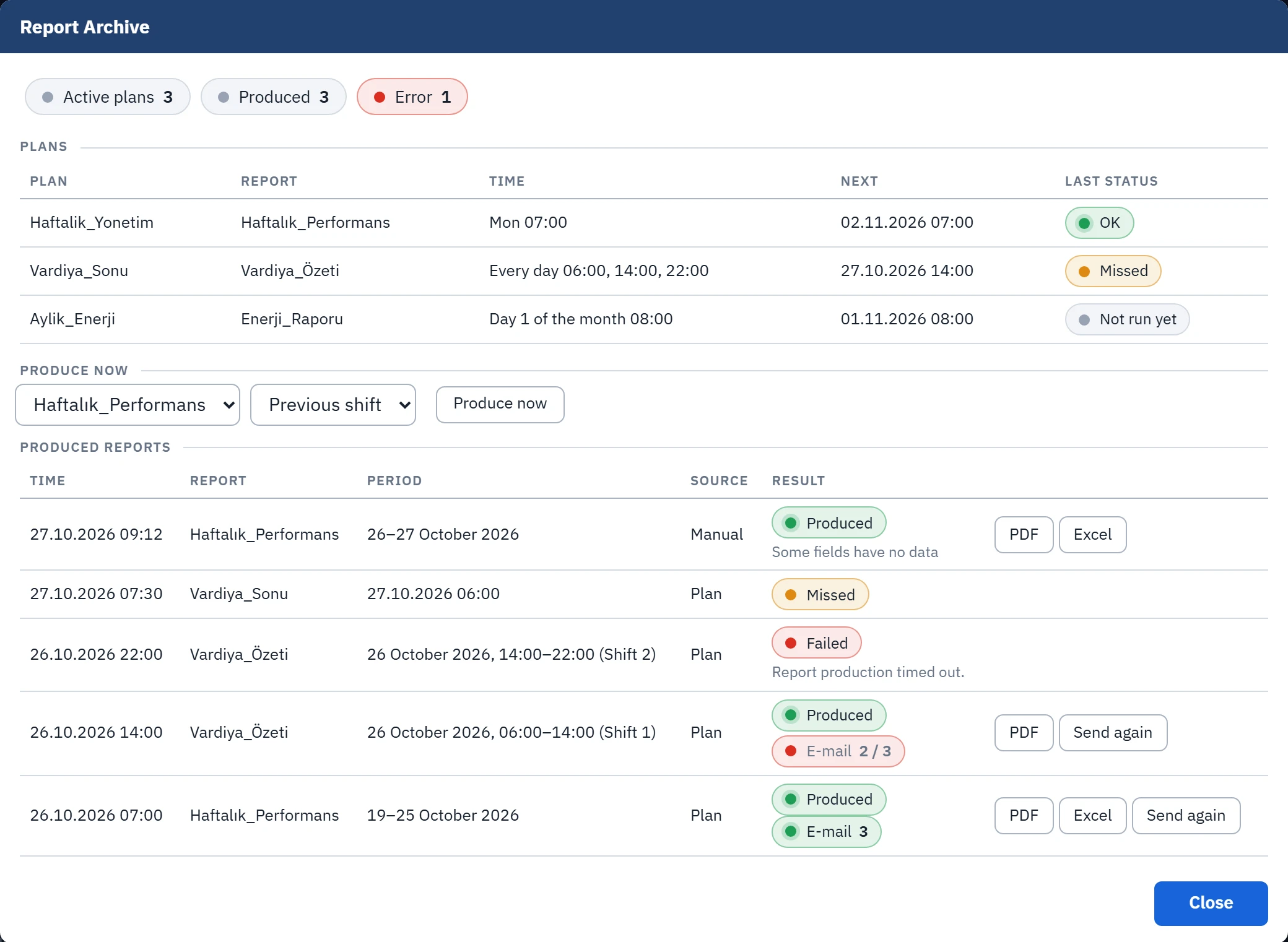 1234567
- Summary — number of enabled plans, produced reports and failed reports.
- Plans — time, next run, last status.
- Produce now — manual production for the selected report and period; no e-mail is sent.
- Failed — the error text is here; the plan is not retried.
- E-mail 2 / 3 — delivery result: it did not reach one recipient.
- PDF / Excel — opens the file on this computer.
- Send again — sends the same files to the recipients again.
| Section | What it shows |
|---|---|
| Plans | The report, time, Next run and Last status of each plan: OK, Error, Missed, Producing, Not run yet. |
| Produce now | Manual production for a selected report and period. PDF and Excel are produced together; no e-mail is sent. Requires the ayarlar authorization. |
| Produced reports | Records of the last 92 days, newest first, at most 200 rows. Source: Plan, Catch-up (produced at startup) or Manual. |
| PDF, Excel | Opens the file on this computer with the default program. |
| Send again | Appears only on successful scheduled rows and requires the ayarlar authorization. Sends the same files in a new message to all current recipients of the plan, not only to those that failed. |
The E-mail badge in the row is the delivery result: 3 means that it went to three recipients; 2 / 3 means that one of three recipients failed with a permanent error. For the result and error text per contact, see the Delivery log in the Notification Center window; this list shows only today's records.
If Send again was used, a second Resend badge appears on the row. It shows the result of the last sending in the form 2 / 3. Green means all were sent, amber means results are pending, red means a permanent failure.
On error
A failed report is not retried automatically. The error is written to the event log and to the Report Archive, the next report in the queue starts, and the plan runs normally at its next time. The e-mail queue is separate: it retries on a temporary error.
| State | Displayed | What happens, what to do |
|---|---|---|
| Production timed out | Failed: Report production timed out. | A single run is cut off after 5 minutes and the archive scan stops. Produce the report again with Produce now. |
| PDF was not created | Failed: The report page could not be opened… or PDF could not be produced: timed out. | Opening the screen and printing are each limited to 60 seconds. |
| Invalid plan | Failed: The report in the plan has been deleted. or Neither PDF nor Excel is selected in the plan. | Correct the plan in Studio and upload it. F7 shows these in advance. |
| E-mail service is off | Failed: The e-mail could not be queued: the notification service is not running. | The files have been created and open with the button in the row. Check the license and the Notification center…. |
| The time passed while Live was closed | Row with source Missed or Catch-up | See the section Missed plan below. |
| Live closed during report production | Interrupted or Live closed while production was running. | If If missed, send at startup is on, it is tried once more at startup; if it is off, an error is written. The same e-mail is not sent twice. |
| E-mail could not be delivered | Produced + red E-mail badge | On a temporary error, the queue retries after 30 s, 1, 2, 5, 15 and 30 min. An invalid address, a permanent rejection by the server and a missing setting become a permanent error without waiting. Fix the cause and click Send again. |
| The archive is too large for the report | Note at the end of the report: The archive is too large for this report: data before … could not be read, related fields may be incomplete. | At most 100 000 lines of the alarm log are read, and the search for values before the period is also limited. The report is still produced; fields before that date may be incomplete. |
Missed plan
If Live is closed at the scheduled time or the computer is asleep, that time is missed. When Live opens:
- If the delay does not exceed 2 minutes, the plan runs normally.
- If If missed, send at startup is on, the report is produced once at startup and Source becomes Catch-up. The period is calculated from the scheduled time: Monday's “last week” report covers the same week even if it is produced on Tuesday.
- If off, the report is not produced, Missed is written and a note is added to the event log.
- If more than one time was missed, it counts as one miss: only the latest scheduled time is produced, earlier ones are not.
If you change the plan's time and upload it, past runs are not made up; the plan starts from its new time.
Files
The PDF and Excel files are stored in the project data folder under raporlar\<yyyy>\<MM>\ (Live files). This folder has no automatic cleanup. A plan that produces three shift reports every day makes the folder grow continuously: delete or archive old files by hand. The row of a deleted file stays in the list, and the PDF button shows File not found.
Redundant server
- Only the master runs plans. On the standby server the window opens and shows Standby: the master produces reports; Produce now and Send again are not shown.
- The plan status and the production records are synchronized to the standby. After a takeover, the new master continues from where the previous one stopped, and the same scheduled time does not run twice.
- The e-mail password is stored separately on each computer: enter it on both computers.