Performance reports
Reports calculated from archive and alarm records, prepared from a template, produced as PDF and Excel according to a plan and sent by e-mail. When to use them, what is needed and how to set them up.
A performance report is a ready-made report that calculates a summary of a period from the archive. For example, every Monday at 07:00, Live calculates last week's production, downtime and most frequent alarms, produces an A4 PDF and an Excel file, and sends the files by e-mail to the contacts you select. You start a report from one of six templates, bind its content slots to tags and set its timing and recipients with a plan.
Difference from Reports
The project has two separate report sections. Neither replaces the other; you can use both in the same project.
| Reports | Performance Reports | |
|---|---|---|
| Where the data comes from | At the moment of the trigger, the current values of the tags are read and stored as a record. | The data archive and the alarm log are read and the selected period is calculated. No new record is created. |
| When it runs | By tag trigger or manually. | At the scheduled time, or in Live with Produce now. |
| Result | A record table; listed, filtered and printed in Live. | A ready A4 PDF, Excel file and e-mail. |
| View | Free design screen or design template. | Six templates, a fixed A4 layout made up of slots. |
| Approval and signature | Yes. | Not available. |
| License | No separate license item is required. | FV-PRF is required. |
- Select Reports: if the record of each batch is to be kept individually, if a record needs approval or a signature, or if a special document such as an analysis certificate or a weighing slip is required.
- Select Performance Reports: if a shift, day, week or month summary is to go to managers regularly by e-mail, or if production, energy and alarm figures are to be compared with the previous period.
License and prerequisites
- License
FV-PRF. The section in Studio does not require this license. Without a license, Live does not run plans and writes No performance report license (FV-PRF): plans are not running. to the event log; the same text appears in the Report Archive window. License files: License and activation.- Archive
- Every tag in the report must be recorded in a data archive. The slot of a tag that is not archived shows no data. The Retention period (days) value of the archive must cover the report period and the previous period used for comparison. Alarm slots read the Live alarm log and do not need an archive.
- The server settings and contacts are defined in the Notifications section (Notification channels). For e-mail,
FV-PRFis sufficient;FV-NTFis not required. The plan e-mail is sent even if the Notifications switch is off. A plan without recipients only produces files. - E-mail password
- Not written to the project file. It is entered in Live, in the Credentials section of the Notification center… window, and stored on that computer with Windows encryption.
- Live must be open
- Live produces the report. There is no Windows service: if Live is closed, no report is produced and no e-mail is sent.
Setup: from template to e-mail
- Archive the tags
In the Historical data section, add tags such as the production counter, energy counter and downtime bit to an archive. The archive fills while Live runs: a period with no history shows no data.
- Create a report from a template
On the Performance Reports›Reports tab, click From template…, select the template and click Create. The report opens on the Design tab.
- Bind the slots to tags
Select a tag and a calculation for each slot. Details: Report templates and calculations.
- Prepare the recipients
Define the e-mail server on the Notifications›General tab, and the recipients on the Contacts and Groups tabs.
- Add a plan
On the Plans tab, select the report, times, period, file type and recipients. Details: Report plans and Report archive.
- Check the project and upload it to Live
F7 lists unbound tags, tags that are not archived, a missing e-mail server and recipients with no address. Then upload the project to Live.
- Test the e-mail
In Live, open the Notification center… window from the system menu, enter E-mail password, and send yourself a test message with Send test….
- Produce the report manually
Open the Report archive… window from the system menu, produce the report with Produce now, open it with the PDF button and check the figures. This production does not send e-mail.
- Watch the first scheduled run
After the plan time, check the row and the e-mail result in the Report Archive, and ask the recipients to confirm that the message and the attachment arrived.
Studio section
The section appears in the Project tree as Performance Reports and has three tabs.
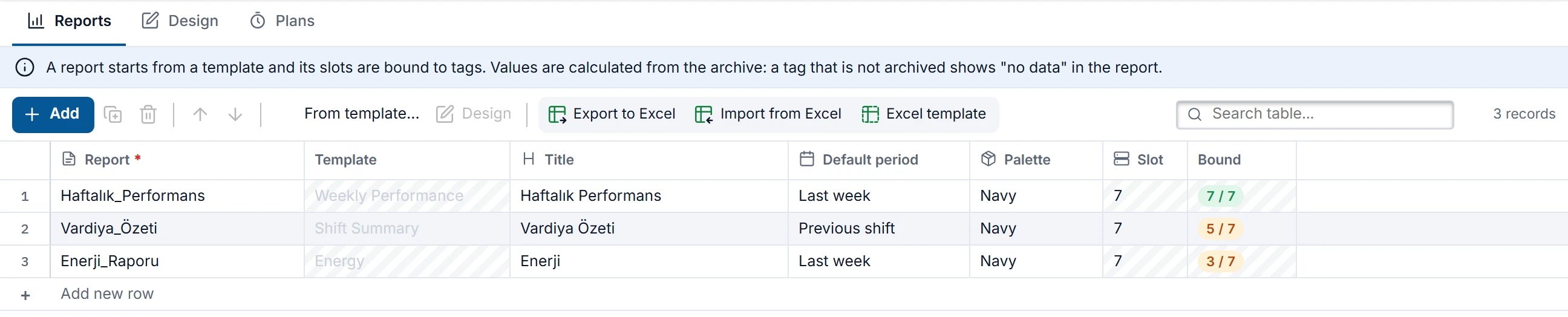
| Tab | What to do |
|---|---|
| Reports | Report list: Report (unique name), Template, Title, Default period, Palette, Slot, Bound. From template… opens a new report; Design takes the selected report to the Design tab. |
| Design | Content slots on the left, A4 preview in the middle, Slot properties on the right. |
| Plans | Plan list and Time and Recipients detail. |
What happens in Live
When the plan time arrives, Live does the following in order:
- Calculates the period, scans the archive files, reads the alarm log.
- Produces the A4 PDF in a hidden window and, if the plan requires it, writes the Excel workbook.
- Saves the files to the project data folder.
- Puts the e-mail in the queue for each recipient. The queue sends the messages and retries on a temporary error.
- It writes the result to the event log and to the Report Archive.
Production does not touch the display of the operator: no window opens, and the focus and the open screen do not change. One report is produced at a time; the next report waits.
| Output | Content |
|---|---|
| A4 portrait. The header shows the project, station, period and time of preparation; the footer shows the page number. A table that does not fit is split between rows, and its header is repeated on the new page. | |
| Excel | The Summary page has indicator cards (value, unit, previous period, target); each chart, table and alarm list has its own page. Durations are shown in hours. A cell with no value shows no data. |
| E-mail body | The first four indicator cards of the report, the note in the plan and the sentence Details are in the attached report. PDF and Excel arrive as attachments. |
| File location | <Proje>.veri\raporlar\<yyyy>\<MM>\<Rapor>_<yyyyMMdd>_<SSdd>.pdf (.xlsx for Excel). The time in the name is the scheduled time. If the same name is produced again, the old file is overwritten. |
Report language
The report and the e-mail are produced in the main language of the project: the first language in the Languages and texts section. The current interface language of Live, the project language selection and the contact's language setting have no effect on the report. The report title, slot titles, units, e-mail subject and note are translated as project texts (Languages and texts).
In the trial version
Performance reports work without a license. Calculation, period selection and e-mail are the same as in the full version; PDF and Excel outputs carry no trial mark (Trial version).