Notification Center window
In Live, monitor the notification status, delivery log and queue; enter passwords, send tests and switch to maintenance mode.
Opening the window
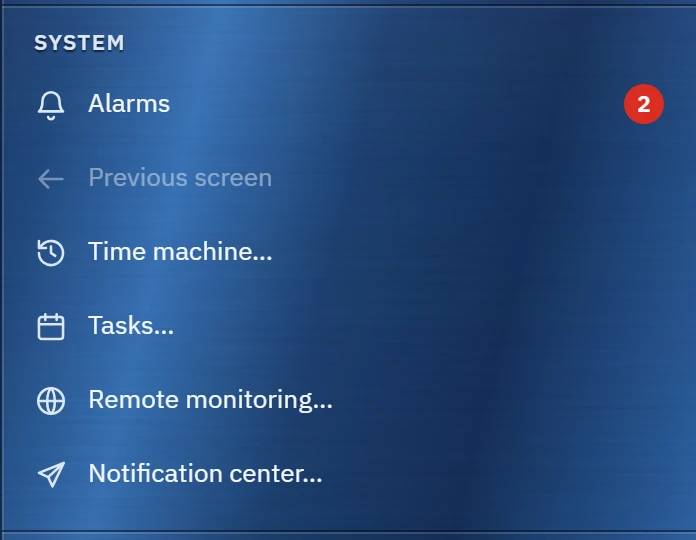
In the system menu, click Notification center…. The button appears only in the main Live window, and only if project notifications are on or there is a report plan with e-mail. It does not appear in the browser, on TV or on an additional monitor.
 1
- Notification center… — visible only when notifications or a report plan with e-mail are enabled.
You do not need to log on to open the window and monitor it. Maintenance mode…, Send test… and changing the credentials require the Settings authorization (Using authorizations). The window refreshes every 2 seconds.
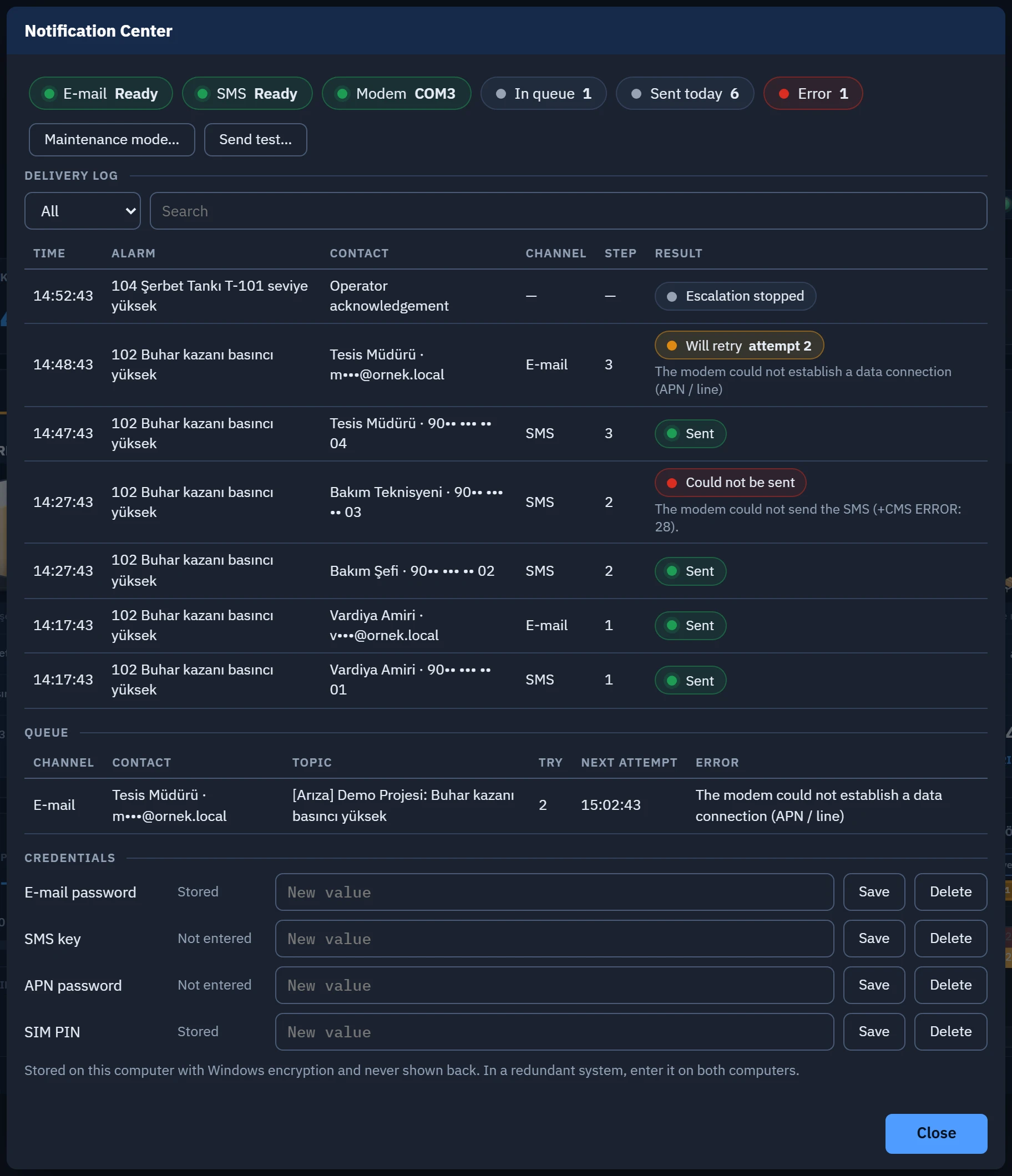 12345
- State — channels, modem status, queue, sent today, permanent errors today.
- Maintenance mode… / Send test… — requires the Settings authorization.
- Delivery log — today's attempts and their results.
- Queue — messages waiting to be sent.
- Credentials — stored on this computer and not displayed again.
State
| Indicator | Meaning |
|---|---|
| Ready: the server and sender are entered, the password is entered if needed, and the port is entered if on the modem route. | |
| SMS | Ready: on the modem route the port is entered; on the HTTP route the address is entered and, if needed, the key is entered. If there is no license, Not ready. |
| Modem | Appears only if a channel uses the modem. Shows the result of the last modem use. Green port name: the modem answered, and the SIM and network are OK. Amber Not tried: this port has not been used since Live started. Red Not ready: modem, SIM or network error in the last use. Amber Port not set: the COM port is empty. |
| In queue | Number of messages waiting to be sent. |
| Sent today | Number of messages delivered today. Reset at night. |
| Error | Number of messages that became Could not be sent today. |
| Maintenance mode ends | Visible while maintenance mode is on. |
If the system is redundant, the Master or Standby: the master sends messages indicator also appears. If there is no license, the window states the reason and hides the action buttons.
Delivery log
Shows today's attempts with the newest on top, at most 200 rows. The list at the top filters the All, Sent, Invalid and Escalation rows. The Search box searches in the contact, alarm, rule and error text.
| Result | Meaning |
|---|---|
| Sent | The server, provider or modem accepted the message. |
| Will retry | The attempt failed. The attempt number appears next to it and the error text below it. |
| Could not be sent | The message was dropped from the queue. See Retrying. |
| Escalation stopped | The chain stopped while there were still steps to send. The Contact column shows the reason: Operator acknowledgement or Alarm cleared. |
Recipients appear masked: v•••@ornek.local, 90•• ••• •• 01. For a person in the contact list with no phone number or e-mail address, a line such as This person has no phone number. appears.
Queue
Lists the messages waiting to be sent: channel, contact, subject, number of attempts, next attempt time and last error. The queue is kept on disk and continues when Live is reopened. Messages cannot be deleted from the queue by hand.
Credentials
- Log on
Your user must have the Settings authorization.
- Enter the value
Type in the New value box on the relevant row. Click Save or press Enter. The state becomes Stored.
- Delete it if necessary
Delete removes the saved value. If the deleted value is required, no message is sent on that channel.
The saved value is not displayed again. Storage location: Where passwords are stored. Saving and deleting are written to the event log; the value itself is not.
Sending a test
- Click Send test…
Select E-mail or SMS as the Channel.
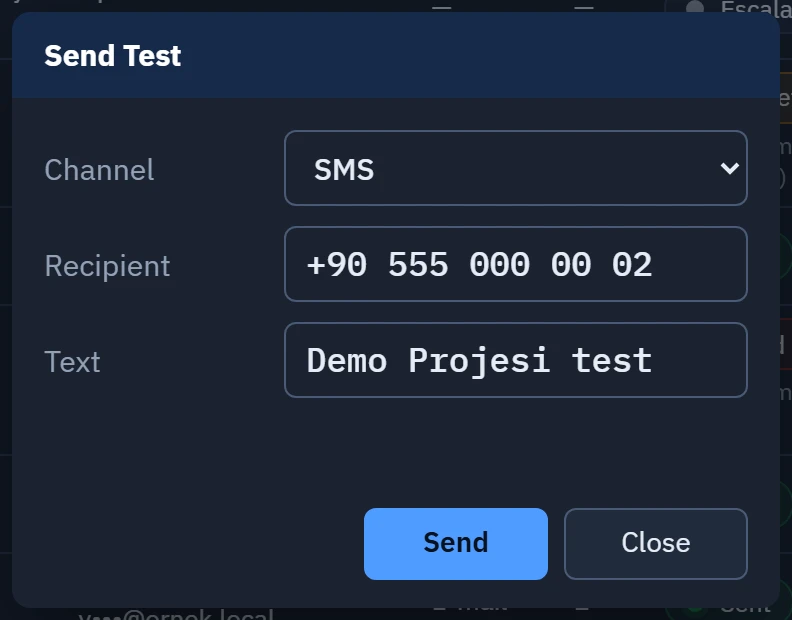
The Send Test window. - Enter the recipient
Enter your own phone number or e-mail address. You can change the Text field.
- Click Send
The result appears in the window: Sent. or an error text. On the modem route, the result can take a long time to arrive.
- Confirm that the message arrived
Confirm that the message appears on the phone or in the inbox. Also look for the e-mail in the spam folder.
- A test does not enter the queue, is not retried and also works in maintenance mode. The result is written to the event log.
- A test checks only the channel. Rules, templates, escalation and the contact list are not tested.
If the window shows Notification service is starting…, the service has not started yet. During this time, the Maintenance mode… and Send test… buttons are not shown.
Maintenance mode
Maintenance mode silences notifications for a set time. It prevents alarm messages from going to people during a planned stop. Behavior: the Shelving and maintenance mode section in the topic Notification Center.
- Click Maintenance mode…
Select 30 minutes, 1 hour, 2 hours, 4 hours or 8 hours as the Duration.
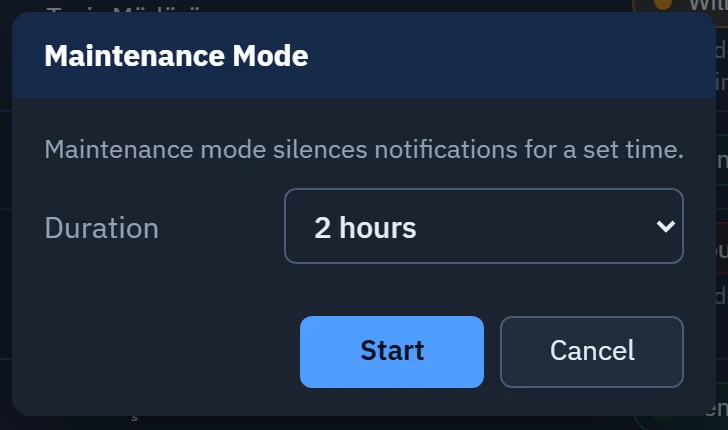
The Maintenance Mode window. - Click Start
Maintenance mode ends appears in the status. The action is written to the event log with the user name.
- Close it early if necessary
While maintenance mode is on, the same window has the Turn off maintenance mode and Change duration buttons. When the time is up, the mode turns off by itself.
In a redundant system
- The window opens on both computers. The Live that is master at that moment sends the messages.
- Maintenance mode turned on at the standby computer is forwarded to the master.
- Credentials are per computer; enter them on both computers.
- A test is sent from the computer on which the window is open. Try it from both computers.