Connecting a client to the OPC UA server
Connecting an external client with the OPC UA Server window in Live: addresses, connected clients, certificate approval, firewall permission, secure and unsecured endpoints, discovery server registration, common connection errors and on-site verification.
After you turn on the server in Studio (OPC UA server), the client connection is completed on the Live computer: the firewall permission is added, the address is obtained and the client certificate is approved.
OPC UA Server window
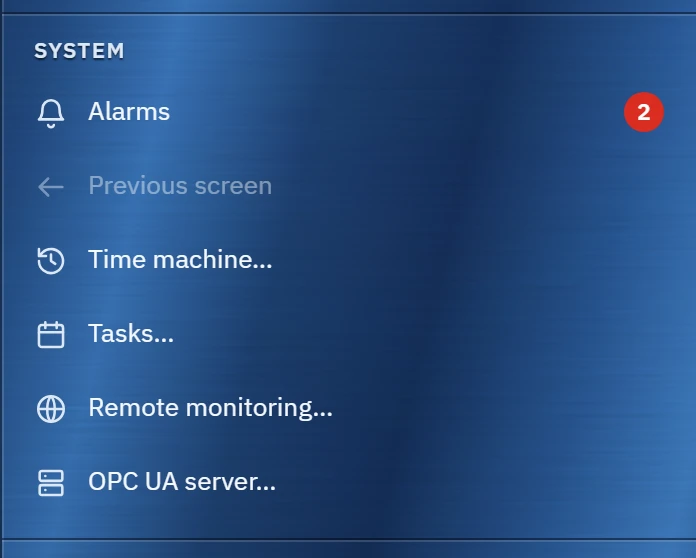
In Live, click the OPC UA server… button in the OPC UA server… section of the system menu. The button appears only if the server is on in the project and you are in the main Live window.
 1
- OPC UA server… — visible if the server is enabled in the project; opens the state window.
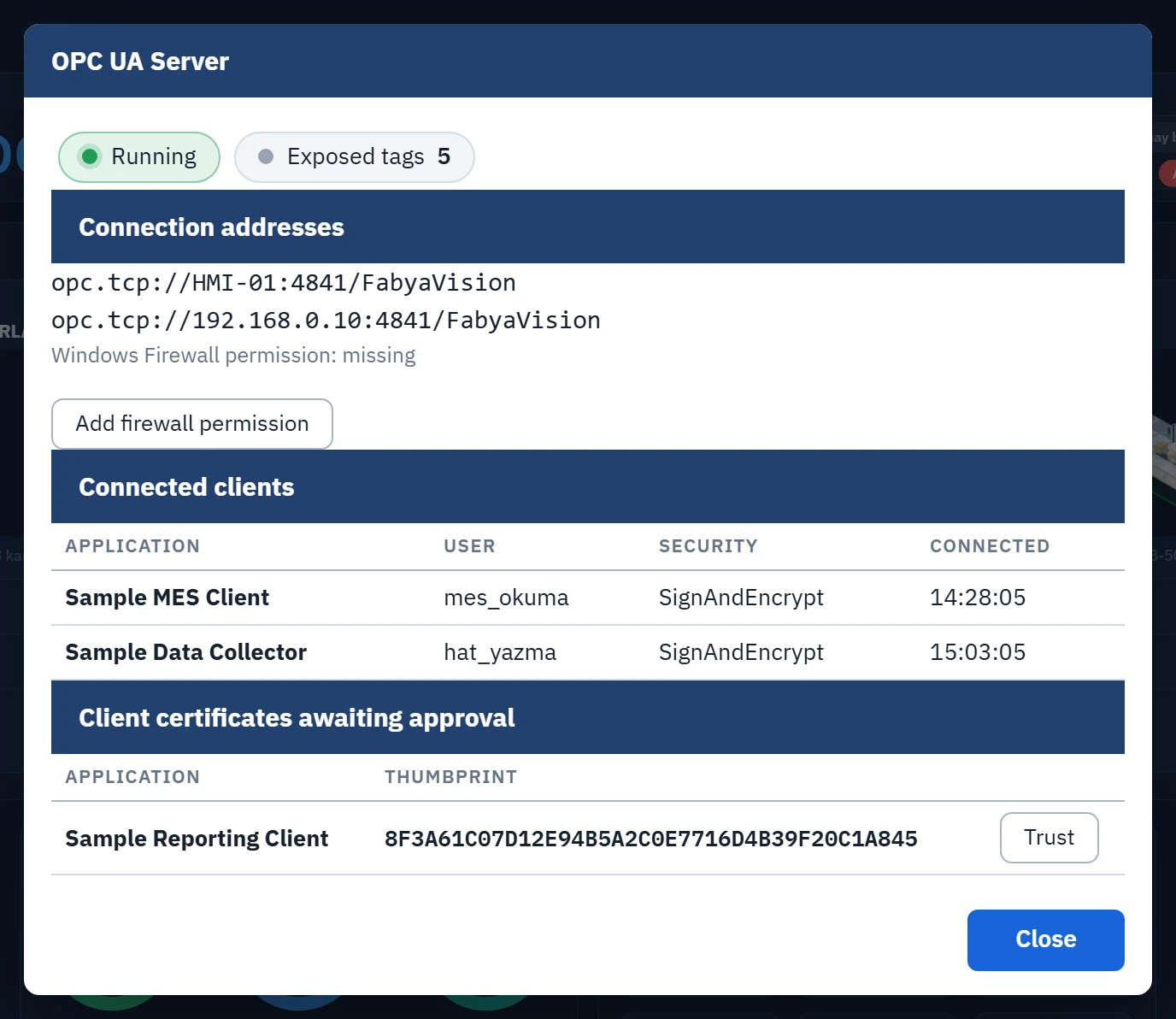 123456
- State — Running, Starting… or Could not start.
- Exposed tags — the number of tags exposed to clients.
- Connection addresses — with the computer name and IPv4 addresses.
- Add firewall permission — allows incoming connections on this port; requires administrator approval.
- Connected clients — application, user, security mode, connection time.
- Certificates awaiting approval — verify the fingerprint and click Trust.
The window refreshes itself every two seconds.
- State
- Running, Starting… or Could not start. If it could not start, the reason is shown below.
- Exposed tags
- Number of tags exposed to clients.
- Connection addresses
- The first row with the computer name, the following rows with the IPv4 addresses of the computer.
- Windows Firewall permission
- exists, none or unknown. If none, the button for adding the permission appears.
- Connected clients
- Application, User, Security (
SignAndEncrypt,Sign,None) and the Connected time. The user of an anonymous session appears asAnonymous. - Client certificates awaiting approval
- Appears only if there is a rejected certificate: application name, thumbprint and Trust button.
Connecting a client step by step
Menu names vary by client program. The steps below are the general flow.
- Verify that the server is running
The state in the window must be Running.
- Add the firewall permission
This permission is required if the client is on another computer (Firewall permission).
- Get the address
Use a row from the Connection addresses list. If the client can resolve the computer name, select the first row; if not, select the row with the IP address.
- Enter the address in the client
Example:
opc.tcp://192.168.0.10:4841/FabyaVision. List the endpoints in the client. - Select the security mode
Only the modes you turned on in Studio appear in the list (Secure and unsecured endpoints).
- Enter the credentials
Enter the user name and password that you defined on the Users tab in Studio. If Anonymous login is on, you can also select anonymous; an anonymous client cannot write.
- Connect and approve the certificate
On the secure endpoint the first connection is rejected, and the client certificate appears in the window under Client certificates awaiting approval. Compare the thumbprint with the thumbprint of the certificate on the client; if they match, click Trust and reconnect from the client. If Accept client certificates automatically is on, this step does not occur.
- Accept the server certificate in the client
If the client asks about the server certificate, accept it. If you need the file manually, it is in the
own\certsfolder below. - Go to the tags
Browse under
Objects›FabyaVisionor enter the node ID directly (Address space). Read a tag or subscribe to it; the quality must beGood. - Try writing
If writing is required, first set a tag that does not affect the process to Read + Write and try it. A successful write appears in the event log as an
OPC UA yazma:line.
Secure and unsecured endpoints
| Mode in Studio | In the client and in the Live window | Client certificate | Data on the network |
|---|---|---|---|
| Basic256Sha256 signed + encrypted | Basic256Sha256, SignAndEncrypt | Required; approved in Live. | Signed and encrypted. |
| Basic256Sha256 signed | Basic256Sha256, Sign | Required; approved in Live. | Signed, not encrypted. |
| Unsecured | None | Not required. | Not encrypted. Only the user password travels encrypted. |
- A client without its own application certificate cannot connect to the secure endpoint. If you have to use such a client, turn on the Unsecured mode only on a closed network.
- Write authorization does not depend on the endpoint: a user with write authorization can also write through the Unsecured endpoint.
Certificates
The server certificate is generated at the first start: self-signed, RSA 2048, SHA-256, valid for 20 years. The certificate contains the computer name, not the IP address. If the client gives a name mismatch warning when connecting by IP address, use the address with the computer name.
The folders are under %LOCALAPPDATA%\FabyaVision\OpcUa\sunucu-pki\:
| Folder | Content |
|---|---|
own\certs\ | Server certificate (.der). |
own\private\ | The private key of the server (.pfx). Do not share it. |
trusted\certs\ | Trusted certificates. To withdraw the approval of a client, delete its file. |
rejected\certs\ | Rejected certificates. The approval list in the window comes from here. |
Firewall permission
The Add firewall permission button requires Windows administrator approval (UAC). The added rule is named FabyaVision OPC UA (TCP <port>): incoming, allow, TCP, this program and this port, all profiles. The button also deletes any block rules left by a cancel answer to the Windows access prompt. If approval is not given, it shows Administrator approval was not given; the rule was not added. This permission is separate from the Remote monitoring permission; neither removes the other. A permission added for the same port by an earlier version also counts as exists.
Discovery server registration
Some clients list the servers on a computer from the local discovery server (LDS, Local Discovery Server, port 4840). FabyaVision does not install an LDS. If an LDS is installed on the computer, Live registers with it automatically; Studio has no setting for this.
- Live looks for the file
%ProgramData%\OPC Foundation\UA\Discovery\ualds.ini. If the file does not exist, registration is not attempted; enter the address in the client by hand. - Copies the server certificate to the
TrustListPathfolder given in the file and renews its registration once a minute. The server appears in the client list asFabyaVision Live. - If the folder cannot be written, the window shows Could not write to the trust folder of the Local Discovery Server (LDS): the server will not appear in client lists, enter its address by hand. The server keeps running. If registration is needed, copy the
.derfile inown\certsto that folder with an administrator account and restart Live. - If the certificate of the discovery server itself (
UA Local Discovery Server) appears in the approval list, check its thumbprint and click Trust.
Common connection errors
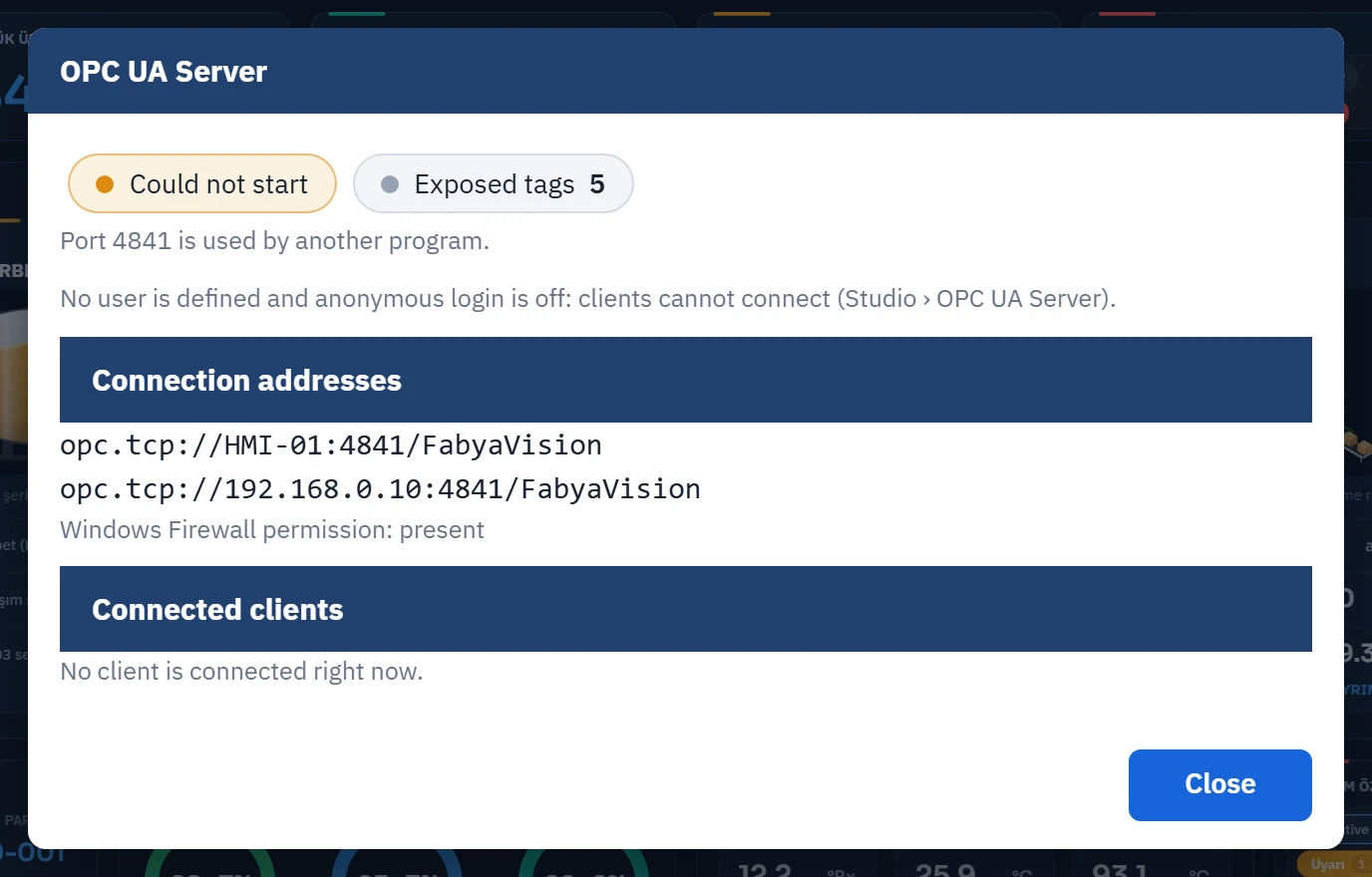
In the Live window
| Symptom | Cause and solution |
|---|---|
| OPC UA server… is not in the menu | The server is off in the project, or you are not in the main Live window. Turn it on in Studio and upload the project to Live. |
No OPC UA server license (FV-OPC): the server was not started. | Load the license (License and activation). |
Could not start, 4841 portu başka bir program tarafından kullanılıyor. | Close the other program and reopen the OPC UA server… window, or change the port in Studio and deploy. Live tries the server again when the window opens and when the project is set up again; you do not need to close and reopen Live. |
Could not start, Sunucu sertifikası oluşturulamadı: … | The folder in the message cannot be written to. Check the write permission of the folder. |
No user is defined and anonymous login is off: clients cannot connect (Studio › OPC UA Server). | Define a user with a password and upload the project. |
In the client
The codes below may appear with different text depending on the client program.
| Symptom | Cause and solution |
|---|---|
| Connection timeout, server cannot be reached | Check the state, the address and the port in the window. The firewall permission must show exists. Network devices along the way may be blocking the port. |
| Computer name cannot be resolved | Use the row with the IP address. |
| The client has no application certificate | The client cannot connect to the secure endpoint. Create a certificate in the client; if that is not possible, use Unsecured mode on a closed network. |
BadSecurityChecksFailed, BadCertificateUntrusted | The client certificate is not approved yet. Click Trust in the window and reconnect. |
BadIdentityTokenRejected at login | Anonymous login is off. Log on with a user name or turn on Anonymous login in Studio. |
BadUserAccessDenied at login | The user name or password is wrong. The name is case-sensitive. A user added in Studio becomes valid once the project has been uploaded to Live and opened. |
BadUserAccessDenied when writing | The user does not have Write permission, or the client is anonymous. |
BadNotWritable | The tag is exposed as Read. |
BadNodeIdUnknown | The tag has not been given access, or the name is wrong. The identifier is the full tag name and does not include a folder path. |
BadTooManySessions | The server accepts at most 50 sessions. Close unused clients. |
| The server is not in the client's list | The LDS is not installed or the registration did not take place. Enter the address by hand (Discovery server registration). |
| The quality of the values is bad | See the Quality codes table. |
Verification on site
- Secure connection
Connect the client through the signed + encrypted endpoint. In the Connected clients table, the Security column must show
SignAndEncryptand the User column the correct name. - Reading and quality
Subscribe to a PLC tag. Disconnect the PLC; the quality must become
BadNoCommunication. When the connection returns, it must go back toGood. - Writing and rejection
Using a user with write authorization, write to a tag that does not affect the process; a line must appear in the event log. The same write by an unauthorized user must be rejected.
- Reconnection
Close and reopen Live; see whether the client reconnects by itself.